




The Blog
How to Create Unlimited AI Videos From One Photo (HeyGen Photo Avatar Tutorial)
Generate unlimited talking head videos from any image without credit limits
Did you know that you can create unlimited AI videos from one photo, without using credits or expensive online tools? I'm going to walk you through step by step how to do that.
Most AI tools charge you credits for every video you create, and it gets expensive very fast. You end up paying per video, per minute, or hitting monthly limits that force you to upgrade to higher tiers.
But with HeyGen, you can create as many videos as you want, with videos as long as 20 minutes. This changes everything for content creators who need to produce consistent video content without breaking the bank.
On my previous guide about AI clones, I showed you how to create unlimited long form videos with HeyGen using video footage as a starting point.
Today I'm showing you how to do the same, but using a photograph, which makes the process of creating videos even faster and with less effort, since you don't have to record yourself at all.
You can use a real photograph or even an AI generated image. Both work beautifully, and the process is nearly identical.
Why Photo-Based AI Avatars Are Game-Changing
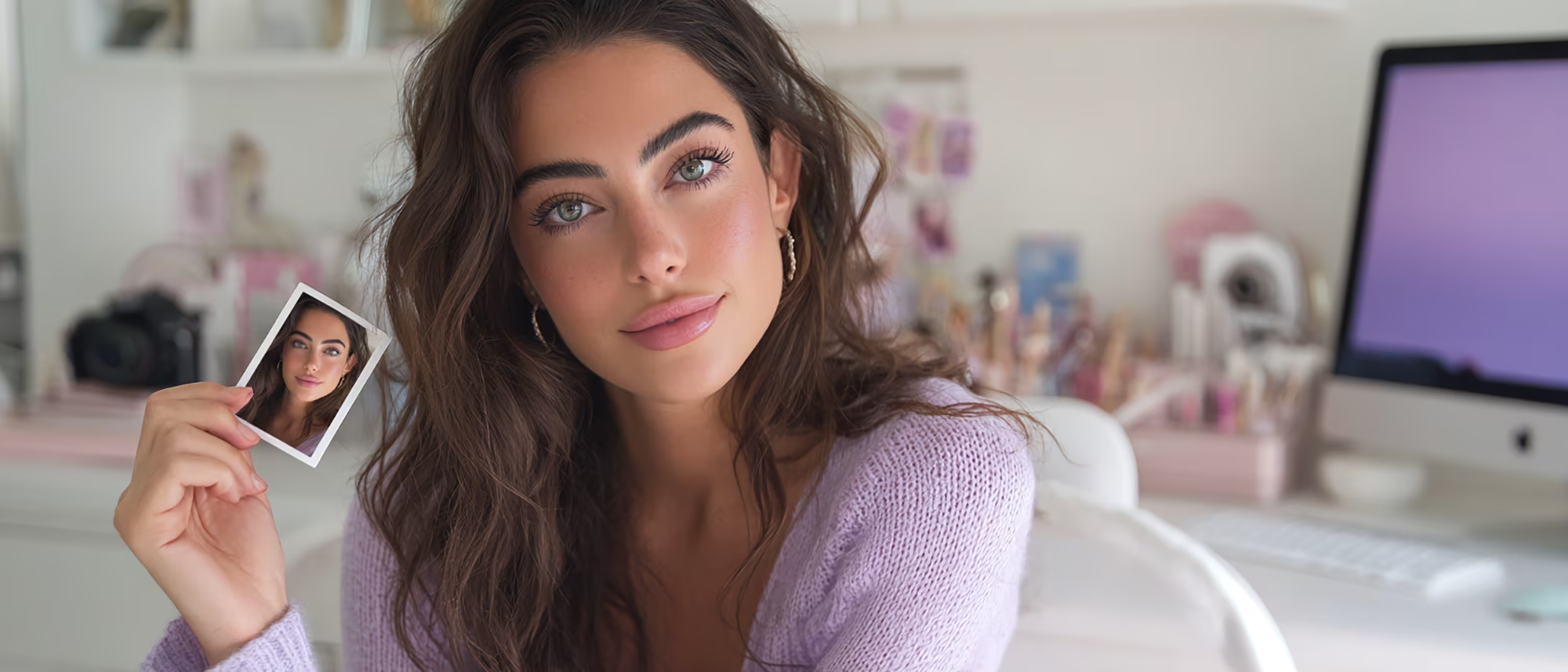
Photo-based avatars unlock possibilities that video avatars can't match. You can create avatars of yourself in different settings, outfits, or even versions of yourself that don't exist yet. You can generate an AI image showing you in a professional studio, on a beach, in a corporate office, or in any environment you imagine.
This flexibility is perfect for creating content where filming isn't practical or when you want to present yourself in a specific way that would be expensive or impossible to film. Need to appear in a luxury setting? Generate the image. Want to show yourself in business attire when you're actually working from home in sweatpants? Create that version.
I created an AI picture clone of myself using Kling AI, and now I'm going to use it to create a long form video in HeyGen.
The process is surprisingly simple, and once you set it up, you can generate unlimited videos from that single photo. No additional filming, no wardrobe changes, no setup time.
How to Add a Photo Avatar to Your HeyGen Account
First, sign up for HeyGen, and choose the Creator plan to get unlimited videos. You can also try it for free if you want to test first.
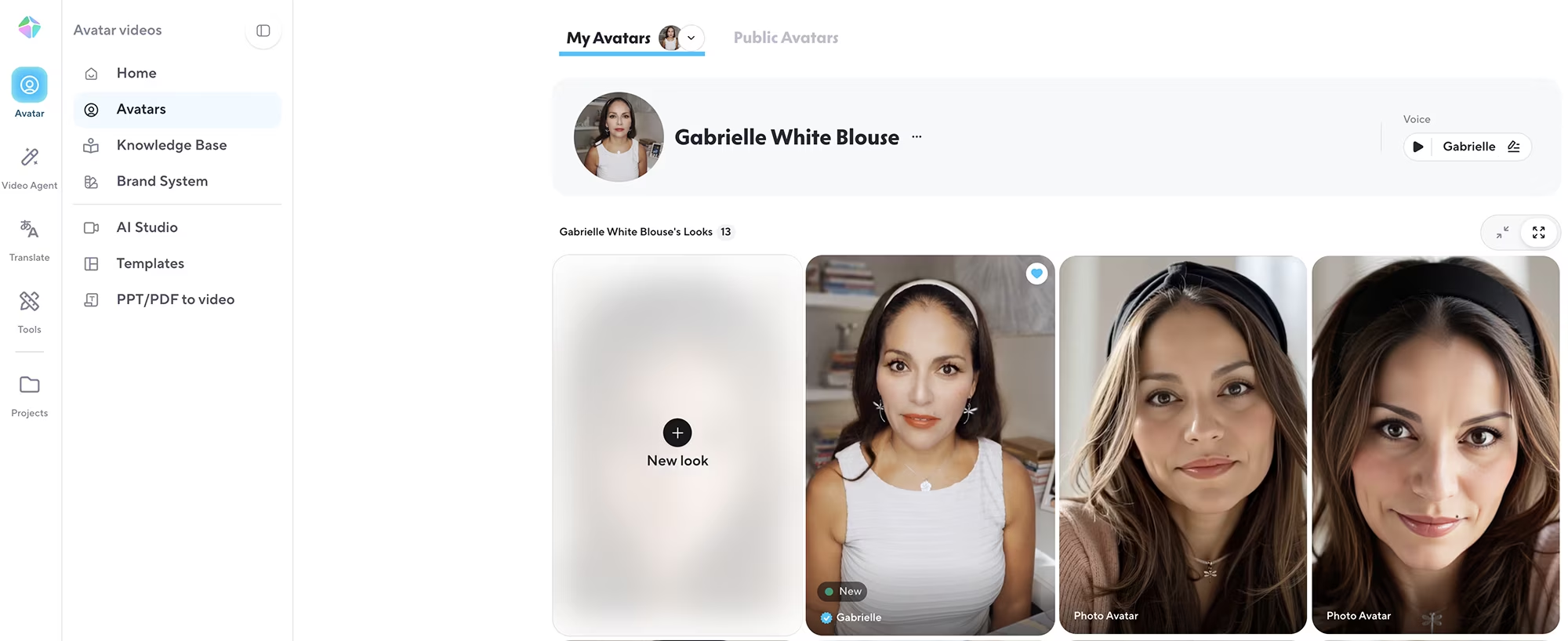
To get started, you go to avatars in your HeyGen dashboard. If you haven't created an avatar before, just follow the prompts and the system will guide you through the initial setup. You CAN create an Avatar using just a photograph or AI generated image.
But if you already have an existing avatar, you will use that same avatar and just create a new look. This distinction is crucial for cost management, because you need a more expensive plan to create avatars of different people.
I only want to create videos of myself, so I will use my previous video avatar and add my picture as a new look under that same avatar. Remember from my earlier guide: the Creator plan allows only one avatar, but you can add unlimited looks to that avatar.
Each look can be completely different. You could have one look that's professional, another that's casual, one with different hair, another in a different location. They all stay under your single avatar, which means you're not paying extra or needing to upgrade your plan.
Upload Requirements for Your Photo
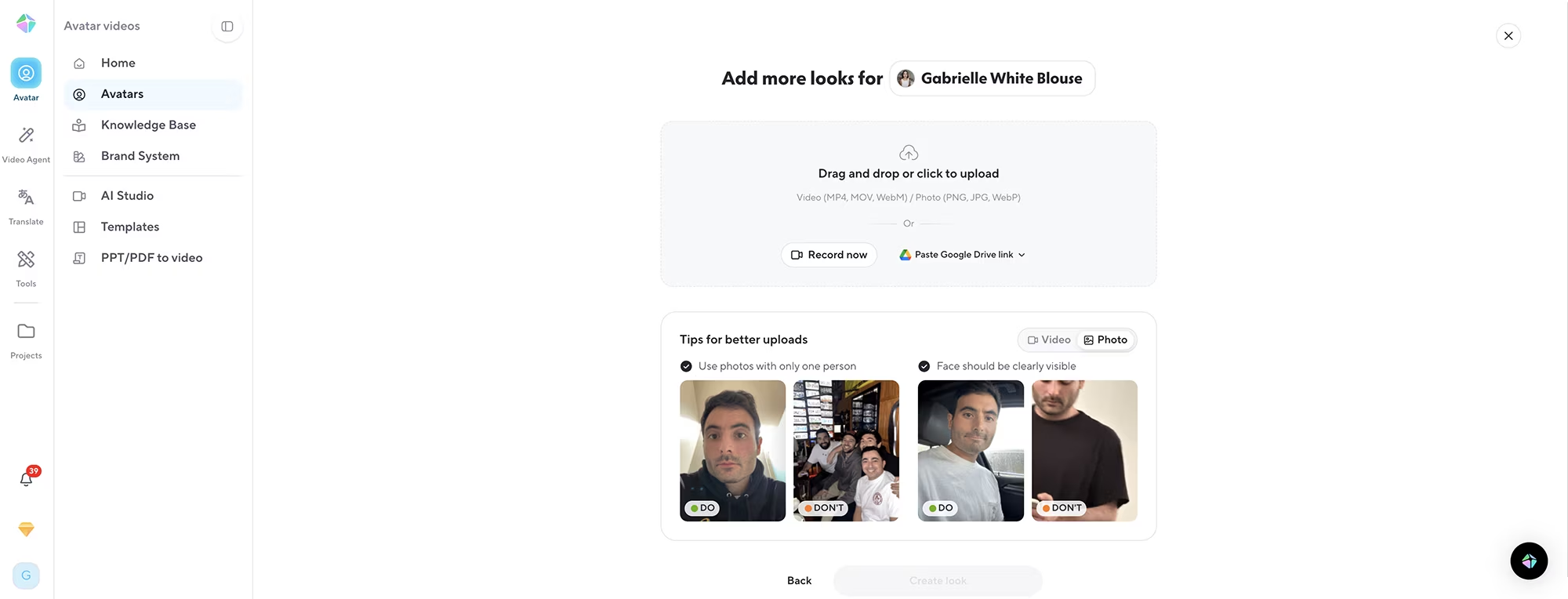
Next you upload the picture. It must show your face well, as recommended in the interface. The photo should have good lighting, a clear view of your face, and ideally show your head and shoulders. HeyGen needs to see your facial features clearly to create accurate lip sync and natural expressions.
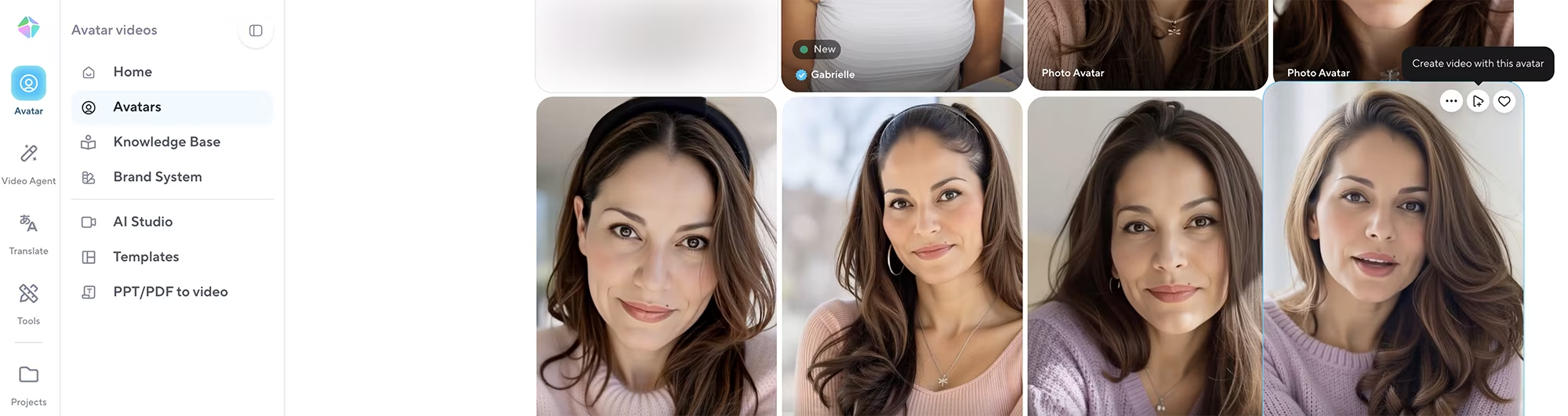
Avoid photos where your face is partially obscured, too dark, or taken from extreme angles. A straightforward photo with even lighting will give you the best results. Once it's ready and processed, it will appear within the looks of your avatar.
Roll over it and you will choose "Create a video with this avatar". This takes you directly into the video creation interface where you'll set up your first video using this photo.
Creating Your First Video From a Photo
Next, you add your script or upload your audio. Since my avatar already has a voice cloned from my video avatar, I will use a script and then choose a voice from HeyGen's voice library.
If you're starting fresh without a video avatar, don't worry. You can upload an audio recording, or use one of HeyGen's voices. HeyGen gives you access to multiple AI voice options that sound remarkably natural. You're not locked into one voice, which gives you creative flexibility.
Choosing the Right Voice Engine
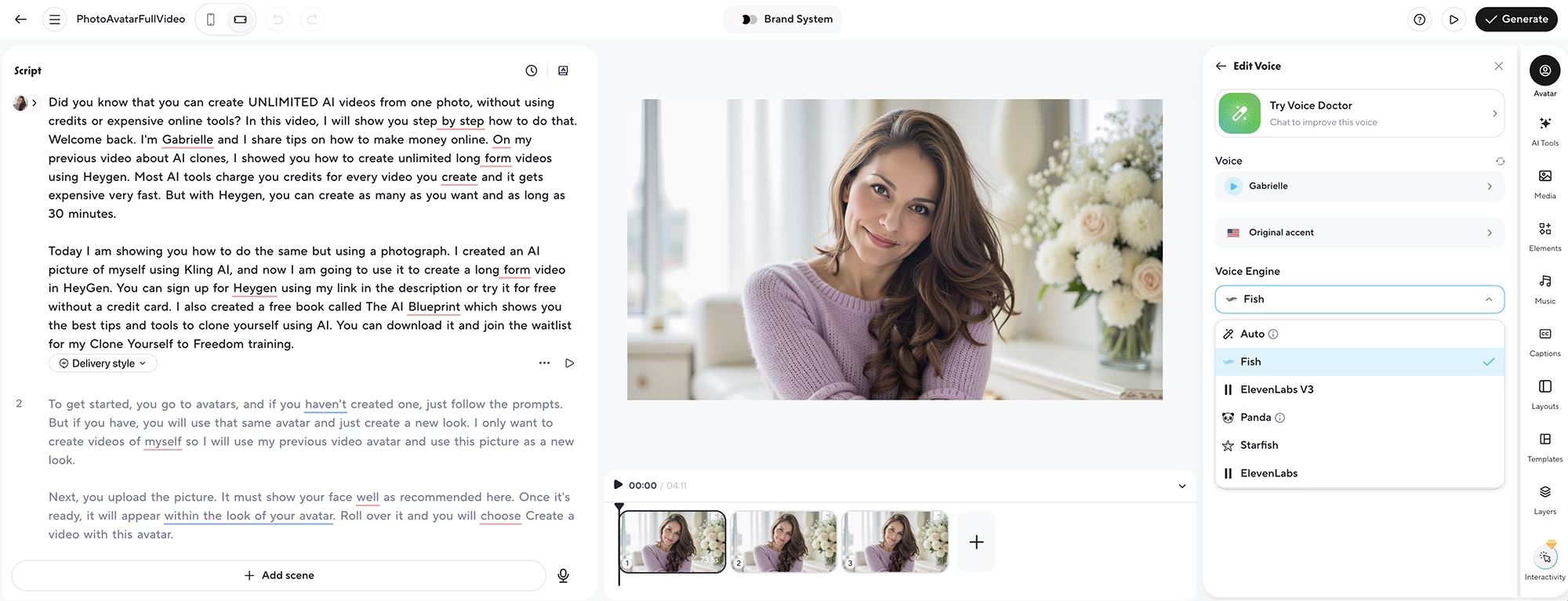
There are several AI voice engines available that you can try, which is great for matching the right tone to your content.
I like Fish and Starfish because they are more expressive and natural. I also feel the results sound more like me. You can also adjust the speed, volume and accent to fine-tune the delivery.
These voice options give you flexibility depending on your content type. If you want something that sounds more polished and studio-quality, try the ElevenLabs engines. Those have a more professional, produced feel that works well for corporate content or formal presentations.
If you want something more conversational and natural, Fish and Starfish are excellent choices. They have less of a recording studio feel and more of a natural room environment setting, that actually make them sound more human and realistic, which is perfect for casual content, tutorials, or anything where you want to feel approachable.
The Critical Setting: Choosing the Right Motion Engine
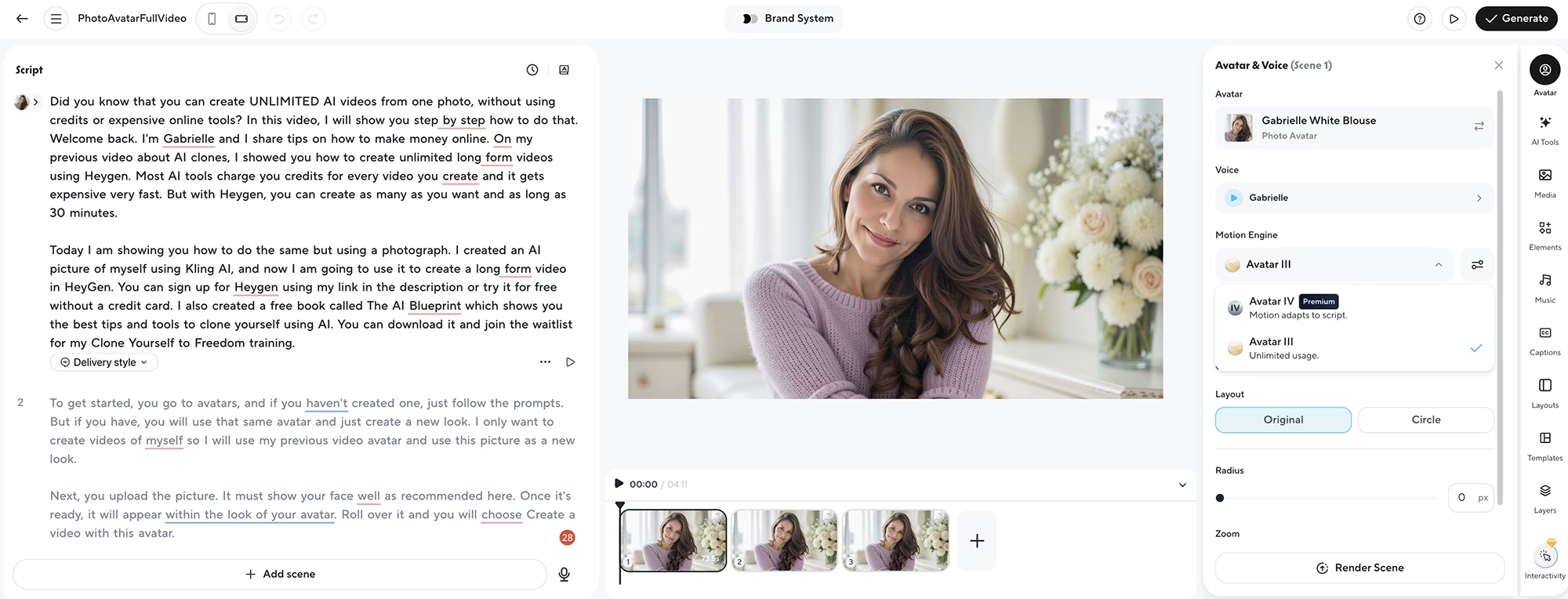
The following setting is very important and something most people won't tell you because they either don't know, or they're following outdated advice.
Choose the motion engine Avatar III for unlimited usage. Avatar IV does use credits, so you will run out of credits fast with that one, and pay an additional fee on top of your monthly HeyGen fee. We don't want that. We want to create unlimited videos.
This is the same mistake I made initially that cost me money. I was following advice from a course that recommended Avatar IV for the best results, and it burned through my credits incredibly quickly. Every video I generated used credits, and before I knew it, I had to purchase more credits on top of my monthly subscription. That defeat the entire purpose of having an unlimited plan.
Avatar IV promises more realistic movements, but here's what they don't tell you upfront: it's really only necessary if you want to create a very specific type of movement for your Avatar. With Avatar IV, you can tell HeyGen exactly how the Avatar should move.
But for photo-based avatars, Avatar III produces excellent results without touching your credit balance. I was fearful of how my photo avatar would move, but it turned out very natural and expressive! It creates natural movement of the head, the hair, the shoulders, even the arms and hands move quite naturally, without having to specify anything.
The quality difference between Avatar III and IV for photo avatars is minimal, but the cost difference is massive. I've compared them side by side, and unless you're creating extremely high-end content where every micro-expression matters, Avatar III delivers professional results.
Stick with Avatar III and you'll never worry about credit charges or unexpected fees eating into your budget.
Advanced Settings
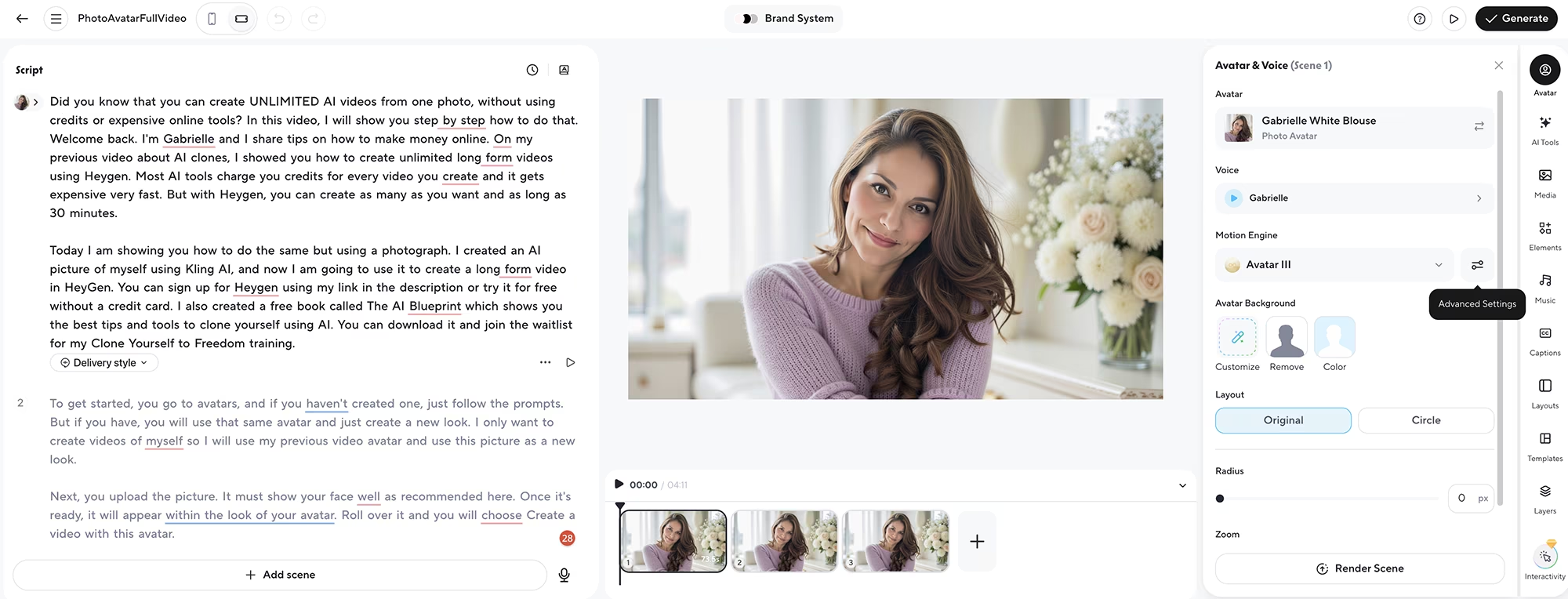
In the advanced settings, you can even choose if you only want lip sync or full body motion for your video. You can even remove the background and add a different one, but I am happy with the one I have.
Too much movement can look uncanny, while too little can feel stiff (lip sync only), which is why I chose full body motion, which is the default setting. The default settings usually work really well and it doesn't feel like too much movement either.
You can't really control or predict how the avatar will move unless you choose Avatar IV motion engine (which eats up your credits, as mentioned before) but I've found that the movement generated by the Unlimited Avatar III motion engine is very good and natural looking.
Preview and Generate Your Video
Next you can preview it. I like that here you can preview the audio, or even regenerate it if you don't like the voice delivery. This preview feature saves time because you can catch issues before spending time on the full generation.
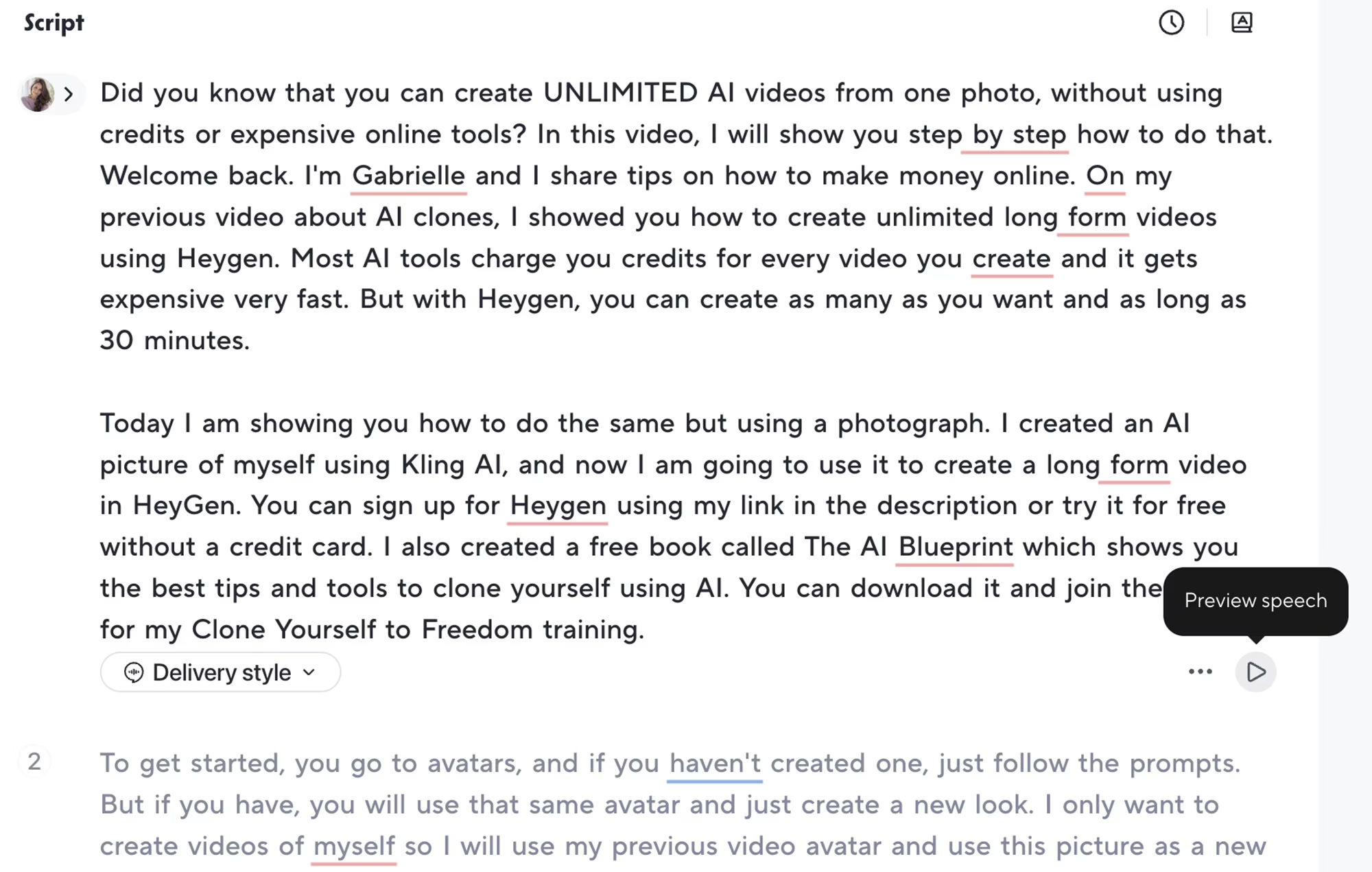
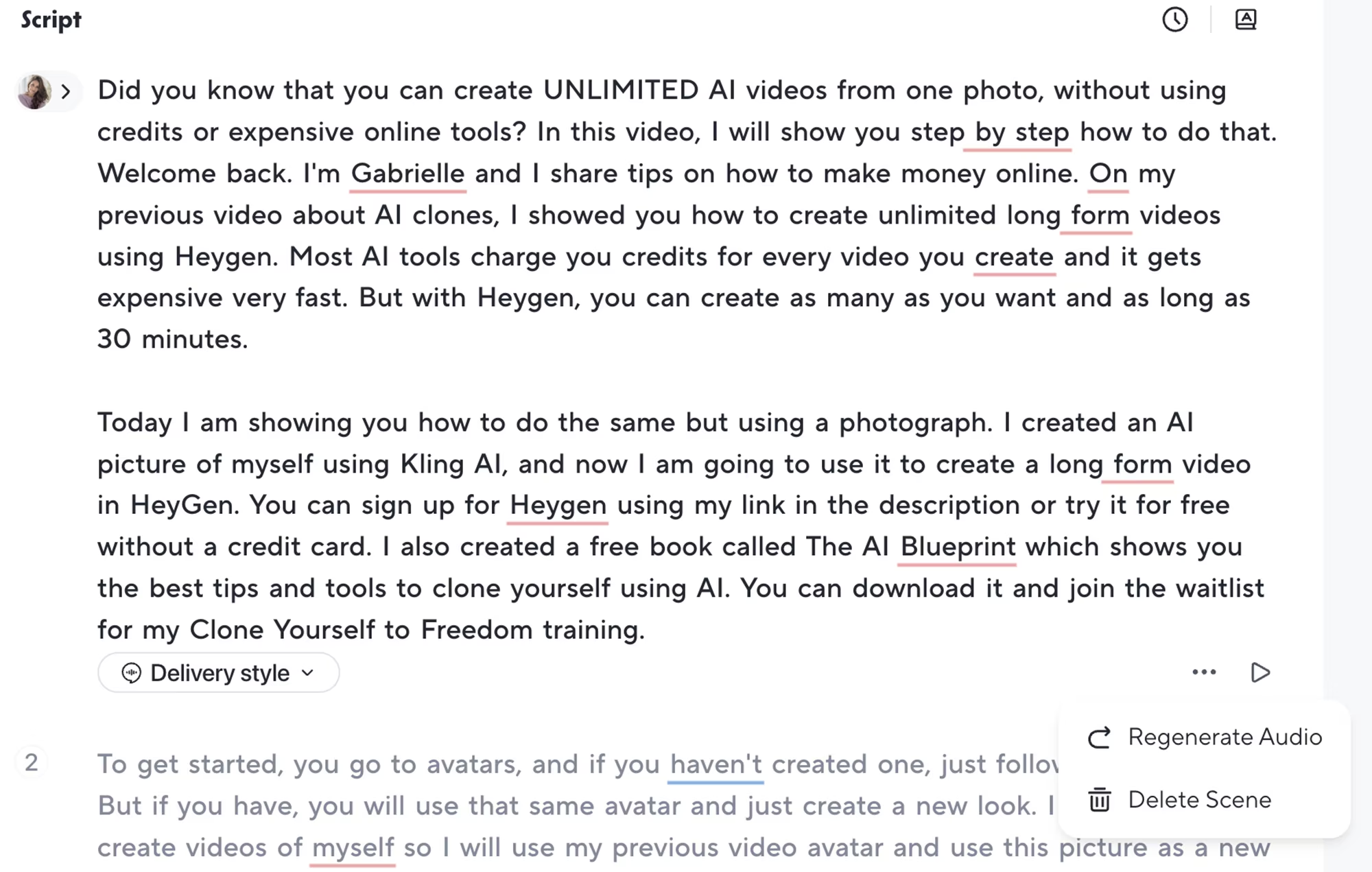
This video can be up to 30 minutes long, but for best audio results, divide it into 3 to 5 minute scenes. Longer scenes can produce ai allucinations in the audio, but sometimes produce better consistency in the avatar's expressions and movements, as the movement resets for the beginning of every scene. I recommend previewing the audio for every scene before generating the video.
If something feels off with the audio, you can adjust the speed, choose a different voice engine, or tweak the script. Getting this right before generation saves you time in the editing process.
The video preview will not show the lip sync yet, but you can check how the voice sounds and whether the pacing feels right.
Once you're happy with it, click "Generate". Remember that you don't need to select 4K resolution. As I mentioned in my earlier guide, I recommend recording and uploading your original photo in the highest quality possible, then exporting in HD, which is what the Creator plan gives you.
You can always upscale to 4K later using CapCut (FREE!), Premiere Pro, or Adobe MediaEncoder. You can also use any free video upscaler. This keeps you on the affordable Creator plan without sacrificing final quality.

After a few minutes, you can check the results and even make changes and generate the video again if needed, as many times as you want!
The Power of Unlimited Regeneration
No more worrying about running out of credits if you need to make changes! You can create the video again and again until it is perfect. This is huge for perfectionists like me, or anyone testing different script versions, voice options, or delivery styles.
With credit-based tools, every regeneration costs you money. You start second-guessing yourself, wondering if it's worth the credits to try one more version. With HeyGen's unlimited plan, you can experiment freely until you get exactly what you want.
I've regenerated videos two or three times before landing on the perfect version, although usually it's great on the first try if you preview the voice beforehand.
Sometimes I missed an error, sometimes I want to try a different voice, sometimes I realized the script needs tweaking or I want to expand it. Being able to iterate without worrying about cost is incredibly freeing.
Real Results From Photo Avatars
Want to see the generated results? CLICK HERE! This video tutorial was 100% generated using HeyGen and edited with Descript, the easiest text-based video editor. You're seeing the actual output quality you can expect from this process, not some polished demo that doesn't reflect real-world results.
The quality of photo-based avatars has improved dramatically over the past year. I've been testing these tools consistently, and the difference between what was possible 12 months ago and what's available now is remarkable. The better the photo you start with, the better your results will be. A high-quality image with good lighting and clear facial features will give you professional results that rival expensive video production.
While photo avatars aren't quite as natural as video-based avatars, they're incredibly useful for creating variations of yourself or generating content in settings where filming isn't practical. Think about it: you can appear in a professional studio setting, a beach backdrop, or a sleek office environment without ever leaving your home. The lip sync is accurate, the expressions are natural enough to feel authentic, and the overall effect is professional.
For many content types, especially educational content, tutorials, or talking head videos where the priority is creating videos fast and the focus is on information delivery, photo avatars work beautifully. Your viewers will focus on what you're saying and the value you're providing, not analyzing whether your avatar blinks naturally or whether every micro-expression is perfectly human. The content matters more than absolute perfection in movement.

Why HeyGen Beats Credit-Based Tools
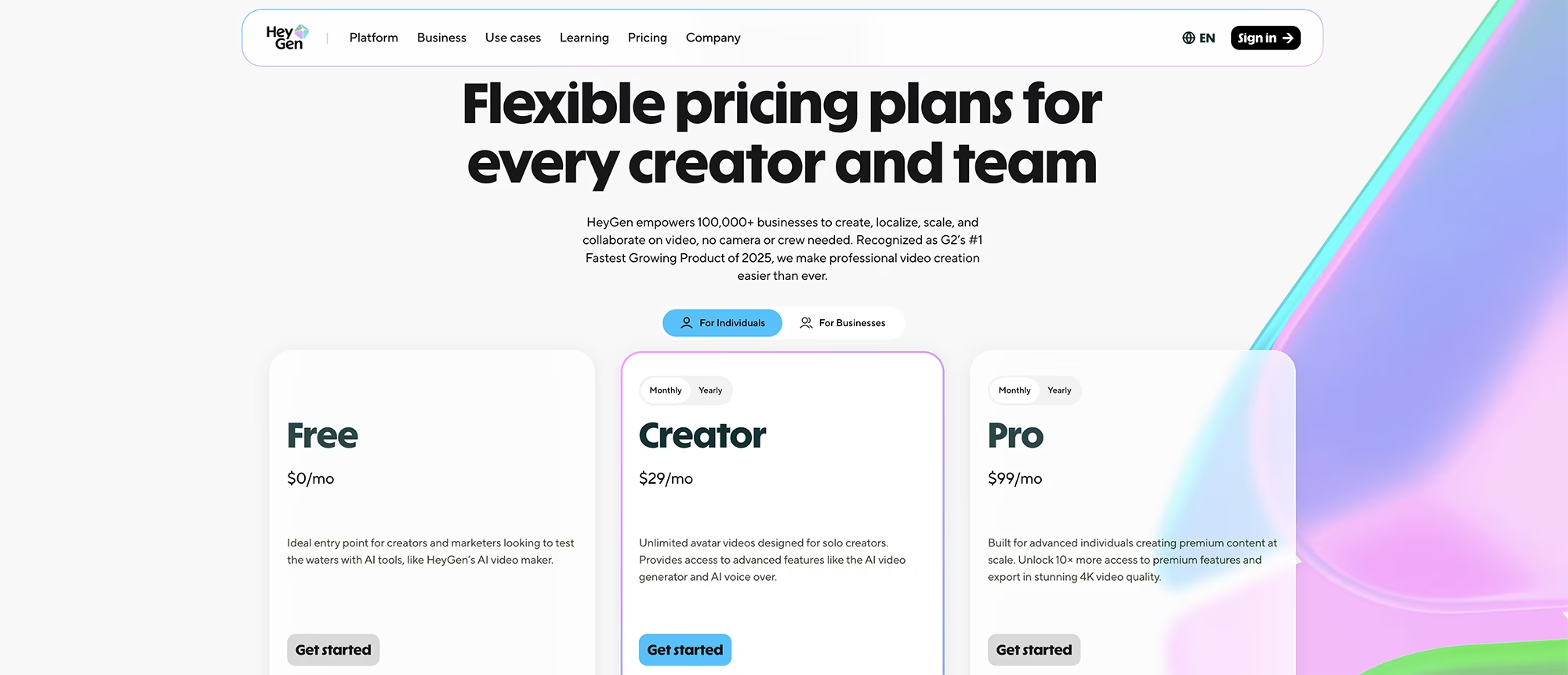
HeyGen is only a low flat fee per month of $29 at the time of this post, which is the best price out there for creating unlimited videos. Compare that to tools that charge per video or per second or per minute, and you'll see why this is such a powerful option for content creators.
HeyGen is also one of the few tools that lets you create long form videos from a photo. Other tools like Kling AI, Higgsfield, and similar platforms let you generate amazing videos using a photo, but only up to a few seconds long. Those are perfect for short form content, but useless if you need long form videos, like actual talking head videos or tutorials.
If you're producing multiple videos per week, the savings add up fast. Let's say you create 10 videos per month at an average of 5 minutes each. On a credit-based platform charging per minute, that could easily cost you $100 or more.
Plus you waste credits, and therefore money, every time you need changes, or if the AI produced errors and you need to regenerate the video.
With HeyGen, it's a flat monthly fee regardless of how many videos you create or how long they are.
Instead of worrying about credit limits or calculating costs per video, you can focus on creating great content FAST. That mental freedom is worth the subscription price alone.
Conclusion & Quick Recap
Creating unlimited AI videos from photos opens new possibilities for content creation without the high costs of credit-based tools. Here's what makes HeyGen photo avatars powerful:
Unlimited video generation from a single photo with no credit charges
Multiple voice engine options for different content styles and tones
Ability to regenerate videos until perfect without additional cost
Videos up to 30 minutes long divided into optimal scene lengths
Works seamlessly with real photos or AI-generated images
Next Steps: Take Action Now
Stop paying per video or per minute for AI avatar content. One photo and HeyGen's unlimited plan let you create as much content as you need without budget anxiety. Here's your action plan:
Sign up for HeyGen Creator plan for unlimited videos
Choose a real photo of yourself or create a clone photo of yourself (or anyone! even an AI influencer you created)
Upload a clear photo showing your face and shoulders with good lighting
Add the photo as a new look under your existing avatar (or create a new avatar)
Important: Choose Avatar III motion engine to avoid credit charges completely
Test the available voice engines for natural conversational tone and choose your favorite
Preview the audio from each scene & adjust script or regenerate audio if necessary
Generate your video
View results and edit your video if necessary
Other Useful Resources
Try HeyGen for FREE - AI video clone tool with unlimited video generation on Creator plan
Join the Clone Yourself to Freedom course waitlist - Complete AI cloning system for video and photos
Download the free AI cloning PDF guide - Top tips for creating your AI clone using multiple AI tools
Visit this page with my complete list of tried & true, proven and curated collection of AI & video creation tools!
Disclaimer: As an Amazon Influencer and affiliate marketer, I may earn a commission on purchases made through my links at NO extra cost to you.
This content is educational only, results vary and are not typical, and no earnings are guaranteed.
You are responsible for your own financial outcomes. Please read my Terms and Conditions and Privacy Policy for more details.
Free eBooks!
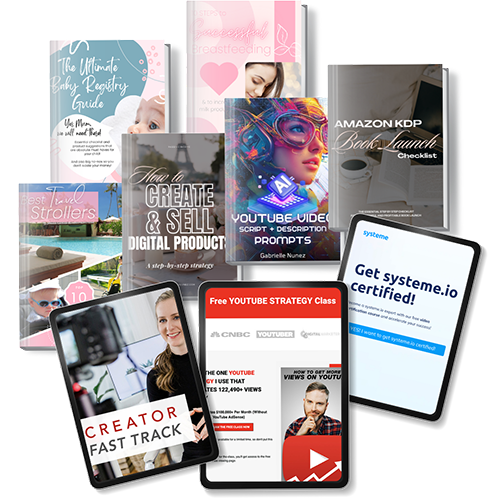
And get access to other free downloads, masterclasses and more! Just enter a valid email below.
You can opt-out anytime.
My Instagram Feed
Newsletter
Stay in the loop for new videos and special offers! And receive useful tips. Opt-out anytime.
Created with Systeme.io - Click to build yours for FREE today!