




The Blog
How to Clone Yourself With AI Video (HeyGen Tutorial for Unlimited Videos)
Create unlimited AI video clones with natural movement and voice for cheap
I've tried many AI video clone tools, but only one really stood out because it lets you create as many video clones of yourself as you want per month, and it gives the best natural looking result.
And if you already know this tool, you're probably using it wrong, like I was before. I'm going to walk you through which AI tool it is and step by step how to use it correctly to create your own digital twin.
Creating a digital twin, essentially cloning yourself, can save you a ton of time and money. I recently made a guide showing how to create your digital twin with Descript using an AI generated photo. As much as I love Descript, I wanted to test other platforms too.
I even took a course on creating a talking avatar, which was disappointing, and another course on creating a digital twin. That course was good, but had limitations. So I went on to test other tools myself, including Kling AI, Flux AI, and more, until I found a clear winner.
Why HeyGen Beats Other AI Video Clone Tools
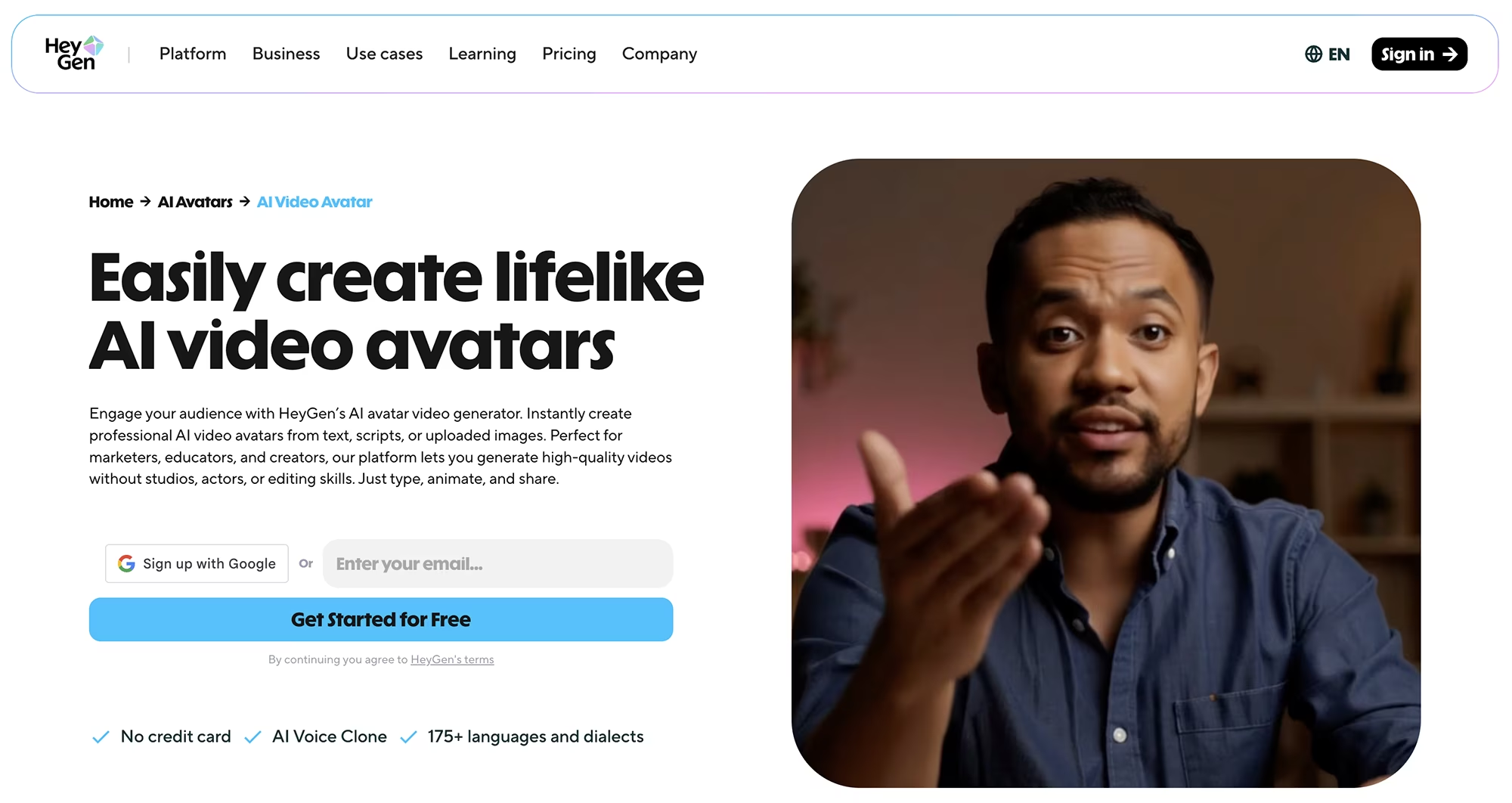
Even though I loved Kling AI and Flux AI, which are amazing for short form video, they aren't my choice for long form video. I discovered that the most affordable and absolute best tool for creating unlimited videos is HeyGen.
And here's the thing: you're probably using it wrong, just like I was. That mistake cost me quite a bit of money because I was following the advice from one of the courses I took. But once I figured it out, I realized how powerful and affordable HeyGen really is for generating videos.
Unlimited Videos per Month with HeyGen's Creator Plan
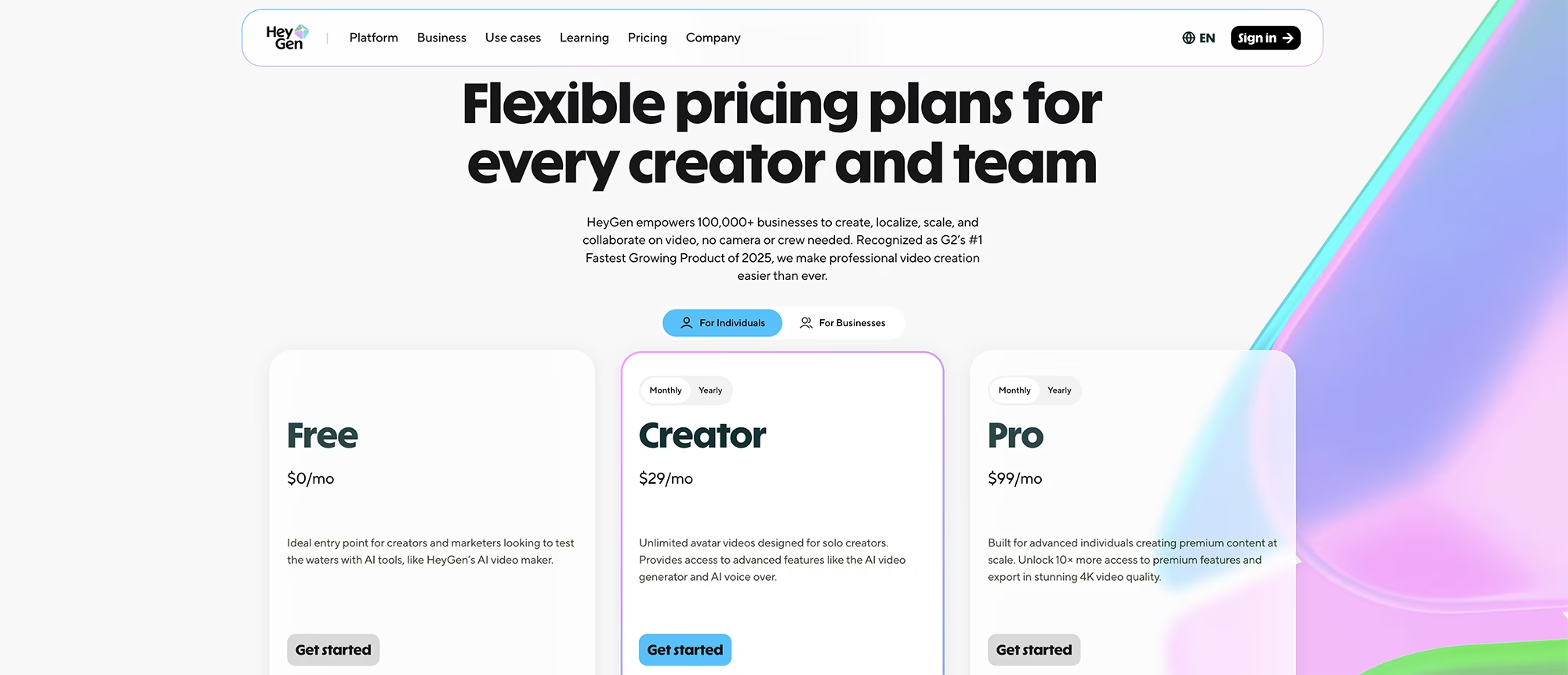
First, sign up for HeyGen, and choose the Creator plan to get unlimited videos. You can also try it for free if you want to test first.
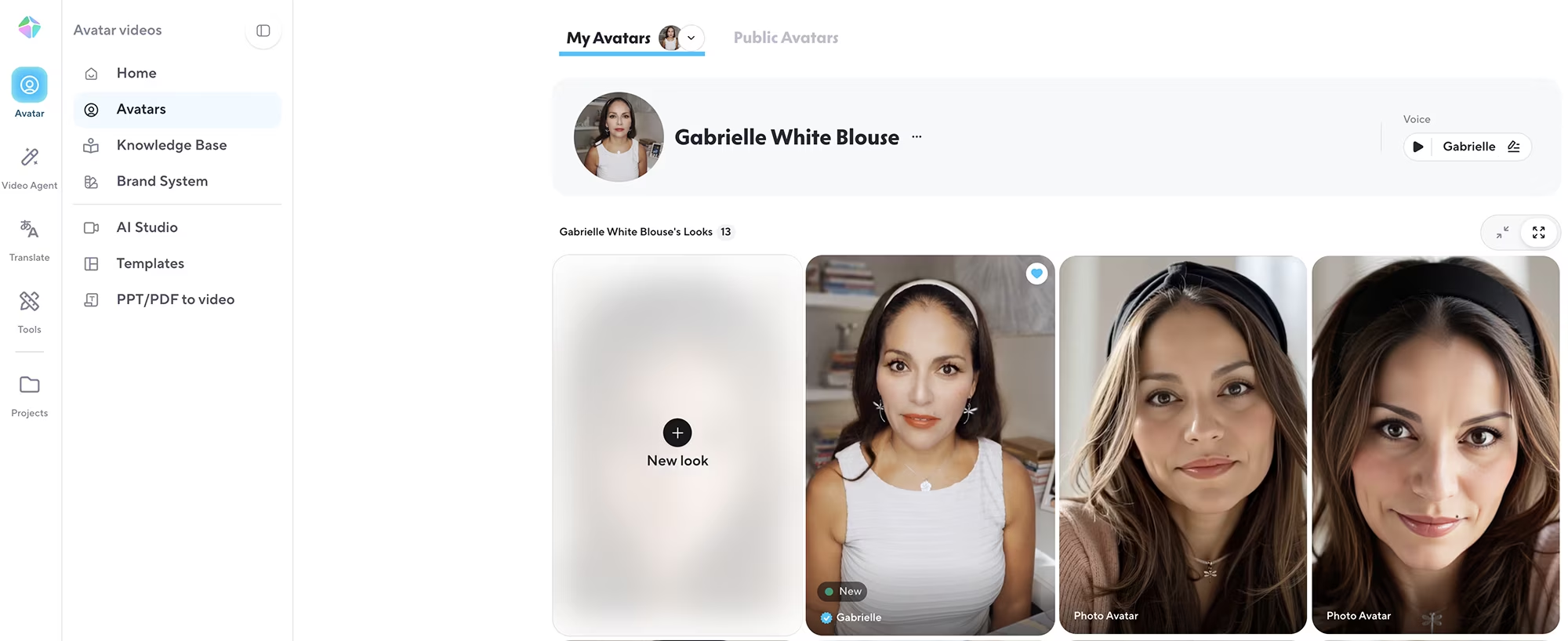
Next, create your own avatar. In the following steps I will tell you the best things to consider when creating your avatar. I already have mine, and what I love is that from one avatar, you can add as many looks as you want, including different clothes, hairstyles, places and more.
The Biggest Money-Saving Mistake to Avoid
One common mistake that can cost money is creating multiple avatars for yourself. The Creator plan only allows you to create only one avatar, so you might think you need a more expensive plan to change how you look (outfits, environment, etc). You don't.
HeyGen allows you to make different looks under one avatar, so you don't need more than one avatar for yourself. This is huge for keeping costs down while still having variety in your content.
The process of adding a new look is almost the same steps as creating your first avatar. The only difference is that HeyGen asks you to authorize the new avatar after uploading your first video.
As you can see in my account, I have several looks for one avatar. Unless you want to clone other people, the Creator plan is more than enough to generate all your videos.
How to Record Your Avatar Footage for Best Results
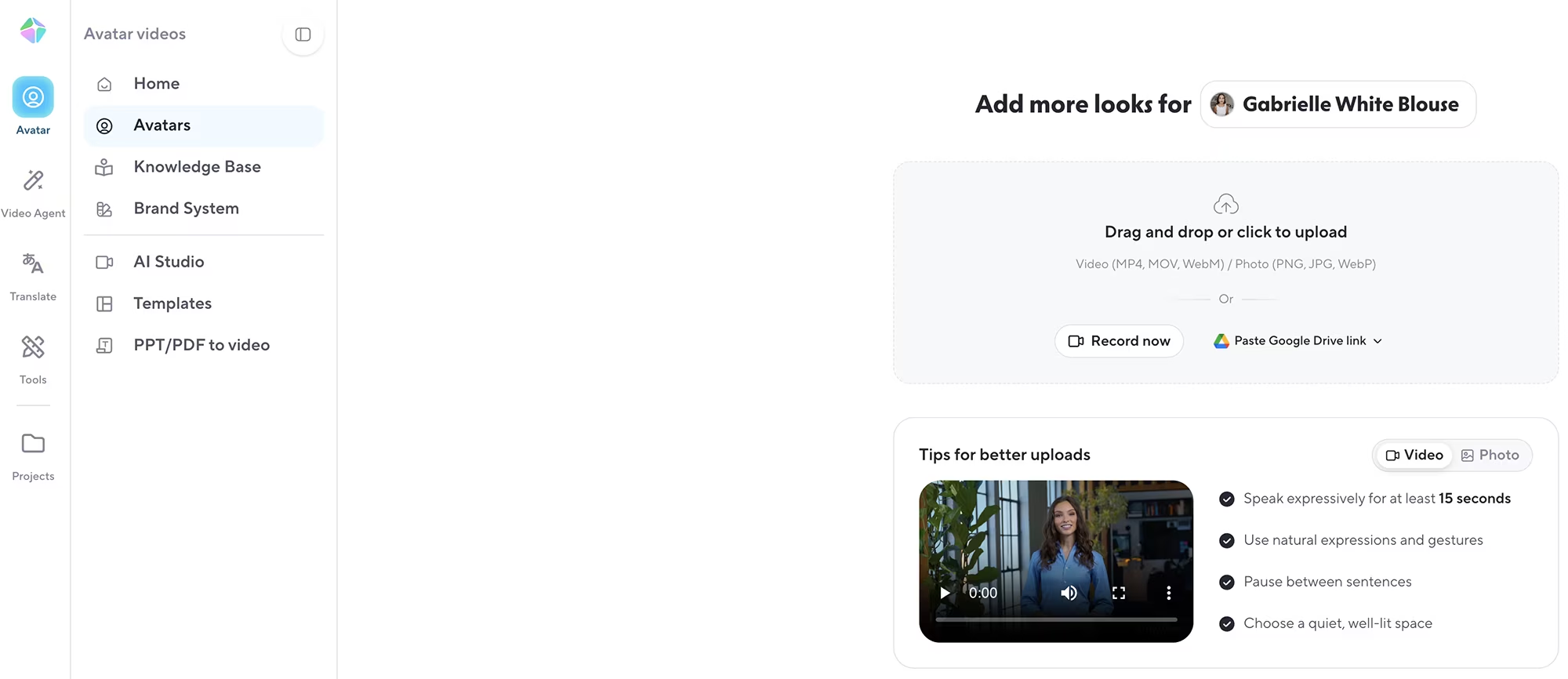
Click the "Upload look" button to create your avatar look, and HeyGen gives you an introduction with tips on how to get the most realistic results, which is really helpful. Your uploaded videos need to meet certain characteristics.
In spite of this guidance, I made a few mistakes with my first avatar look. But that didn't matter because I added better looks later, which gave me much better results. Every time I add new looks, I get better at fixing previous mistakes and my results improve. You don't need to start over or reauthorize anything.
After reading the tips, click Get Started. Now it provides guidance on how to record your footage.
Equipment and Setup Requirements
It recommends good equipment, but a modern smartphone is enough. I get great results with my iPhone as long as I have good lighting. Choose the right environment, look straight ahead and keep your head level.
I did notice that my lip sync looked weird when I tilted my head up. Speak naturally and clearly, with short pauses. Make your motion natural. Don't exaggerate your hand movements or faces, but you do want to be expressive in a natural way.
Video Length Matters
Then upload your video. I found that a five minute video produces more natural results than a shorter one. Otherwise it tends to repeat the only gestures you gave it during two minutes or less, and it can look weird that it repeats over and over again.
Important Upload Settings
You'll be asked if you want to remove background noise, which improves audio. I recommend using a good microphone in a quiet environment when you record your video.
Also, always select background removal. This doesn't permanently remove your background, it just keeps the option to replace it later.
Finally, it asks if you want 4K resolution, but you don't have to choose this because you would need a more expensive plan to generate 4k videos, and as you'll see next, you really don't need to pay more to make your final video 4k.
I recommend recording and uploading your video in 4K to ensure high quality, and then export in HD, which is what the Creator plan gives you.
How to get 4K videos without Paying Heygen More
To make the final video 4k, run the resulting videos you create with HeyGen afterwards through either CapCut, Premiere Pro, Adobe Media Encoder, or any free video upscaler, where you can export it in 4K. That's what I do.
The Avatar Authorization Process
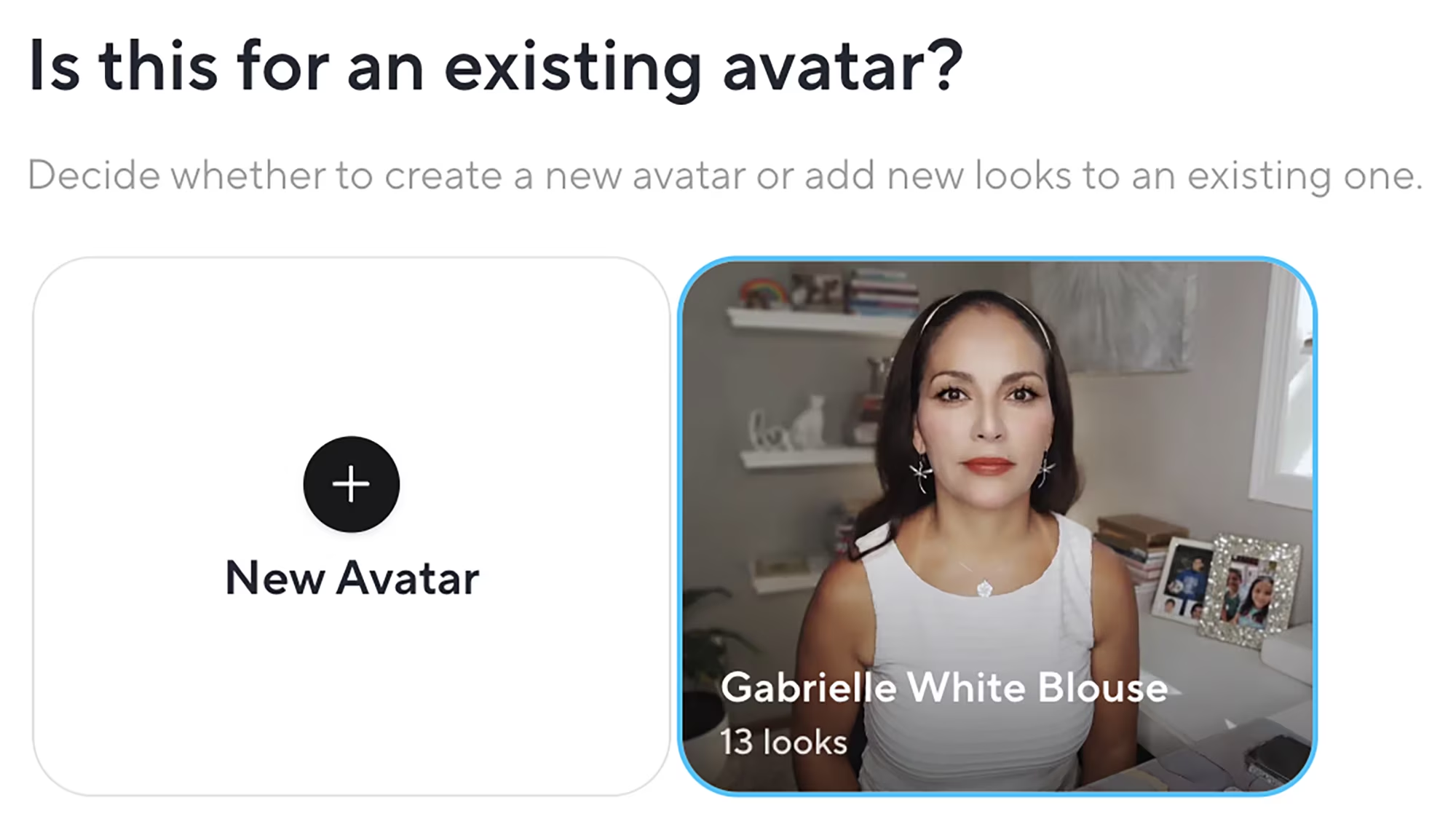
Next, confirm whether this is for an existing avatar. With the Creator plan, you can only have one avatar, but remember you can add unlimited looks. If this is your first time, select New Avatar and follow the authorization process.
On the next screen, HeyGen will review your footage, but you don't have to stay on this screen and wait. Just press Skip and submit, or submit. Upload may take a while depending on your internet. You'll receive an email notification when the new avatar look is ready.
Once it is ready, it will take you directly to a screen to create your first video, but you don't have to do that right away. You can go back to avatars and add another look, or you can select your avatar look and press "Create Video with this avatar".
Two Secrets Most People Don't Know About HeyGen
Here's where I share two secrets that most people won't tell you.
Secret One: Avoid using Avatar IV if you want Unlimited Videos
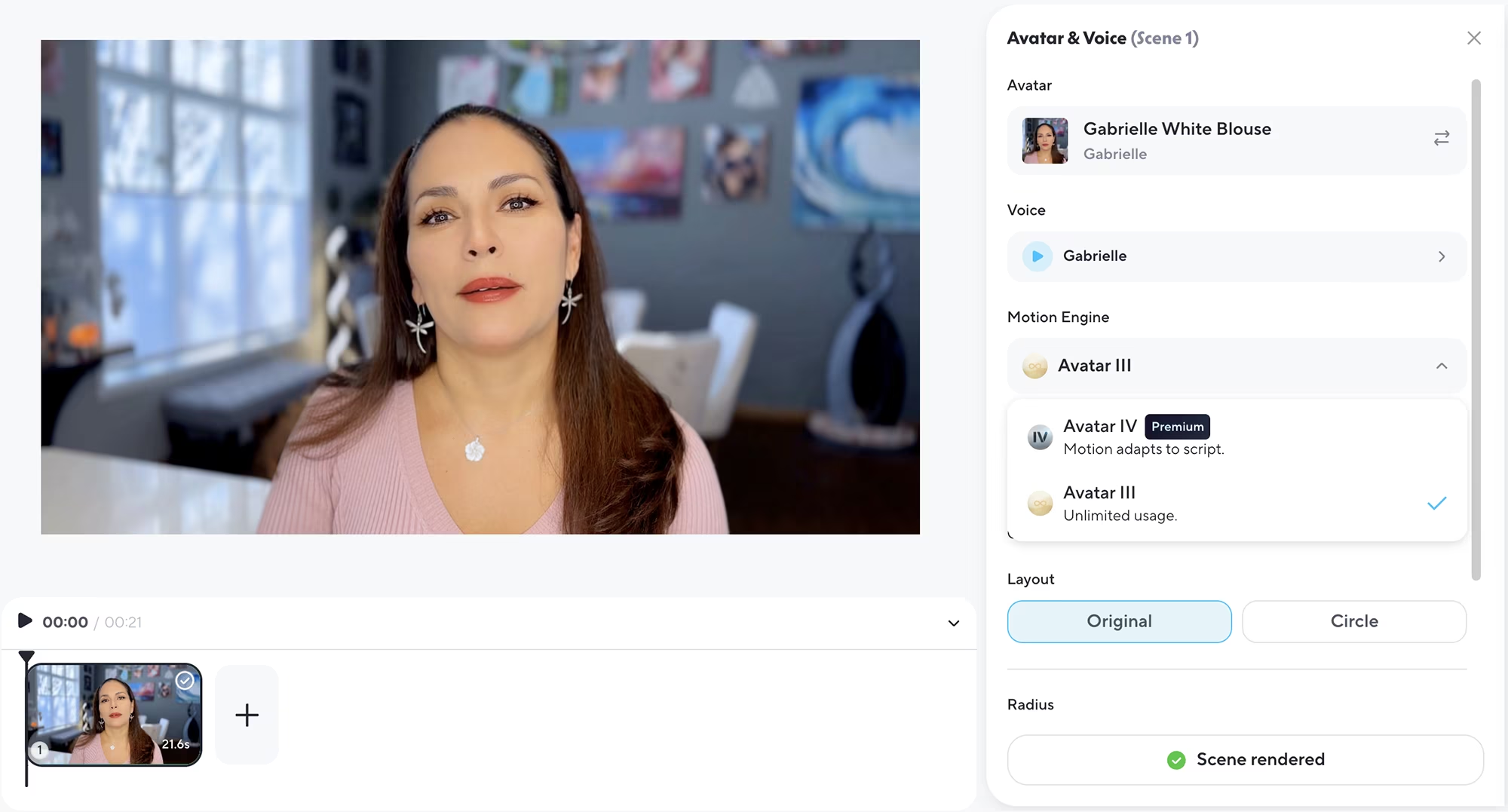
To make unlimited videos, do not choose Avatar IV motion engine. It promises realistic movements but uses tons of credits. You run out quickly and have to buy more. I learnt this the hard way after following a course's recommendation.
Using the unlimited motion engine option instead gave me amazing natural looking videos with movement, even when I use static images as a look.
Avatar IV is useful only if your base is a static image and you want to create specific movements. For video-based avatars, stick with the standard unlimited option.
I used Avatar IV at first because that's what a course I took recommended. The results were nothing special, and my credits for using Avatar IV ran out very fast, so I had to pay extra TWICE in one day, to create more videos with it. Until I figured out that I could create fantastic videos without Avatar IV.
Be careful, because Avatar IV is set by default, so if you want unlimited videos you should choose Avatar III. I created the remaining videos I needed using Avatar III to test the results, and the difference was not noticeable!
Secret Two: Explore the Voice Engine Options
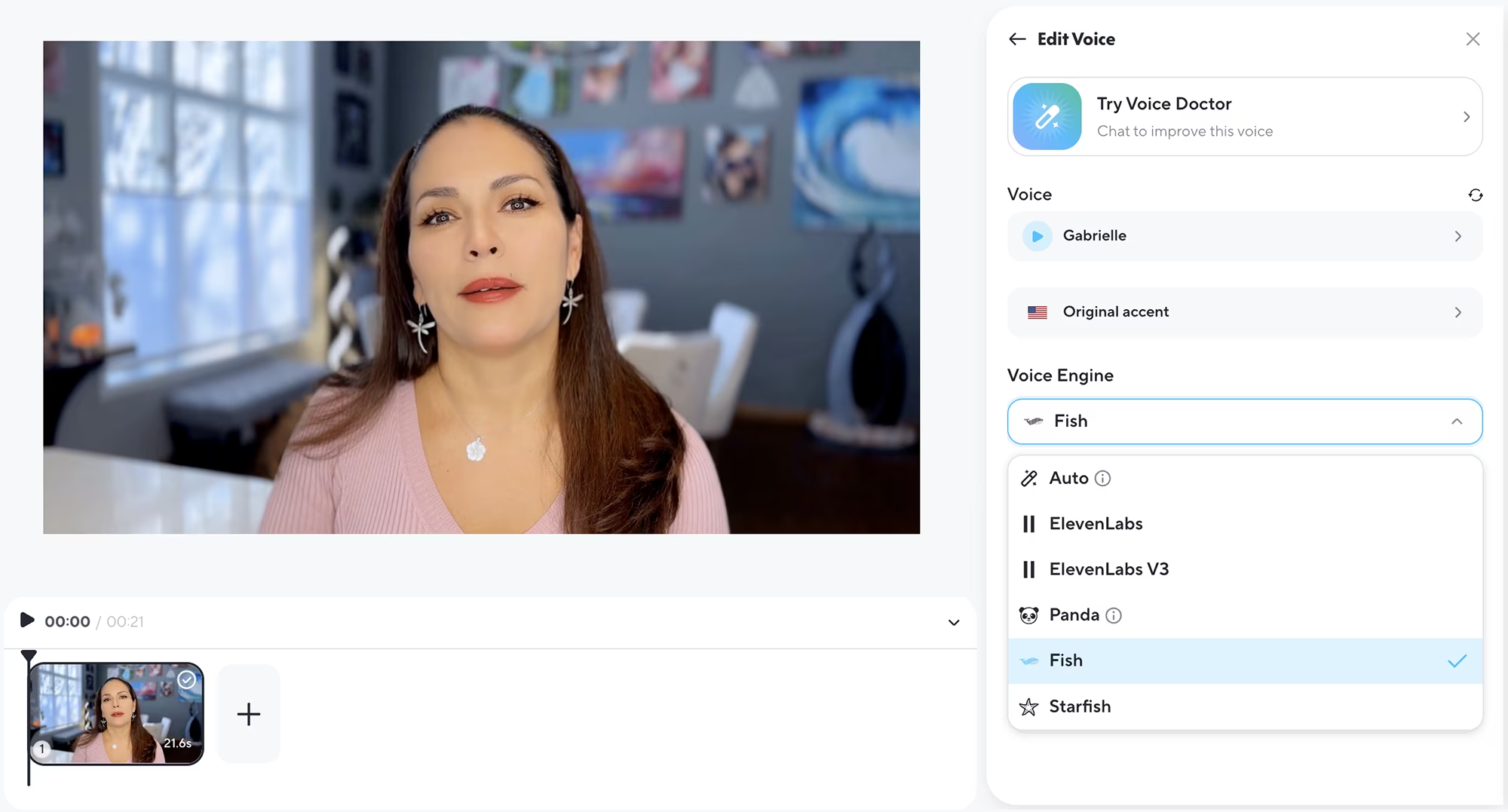
I discovered this by accident. It is not something you see right away. You can upload your own audio for extra realism, but why spend time on that when it has multiple voice engines?
You don't have to use your default avatar clone voice. The voice engine options include Panda, Fish, Starfish, and two ElevenLabs engines. My favorites are Fish and Starfish. They sound very natural and expressive and more like me, but do have less of a sound studio feel.
After selecting the voice, remember to choose the option "Apply to all scenes" if you have more scenes.
You can further enhance the sound of the voice if you want the studio feel, using Descript, Premiere Pro or CapCut. However, I didn't need to! The voice turned out crisp and sounded great.
Creating Your First AI Clone Video
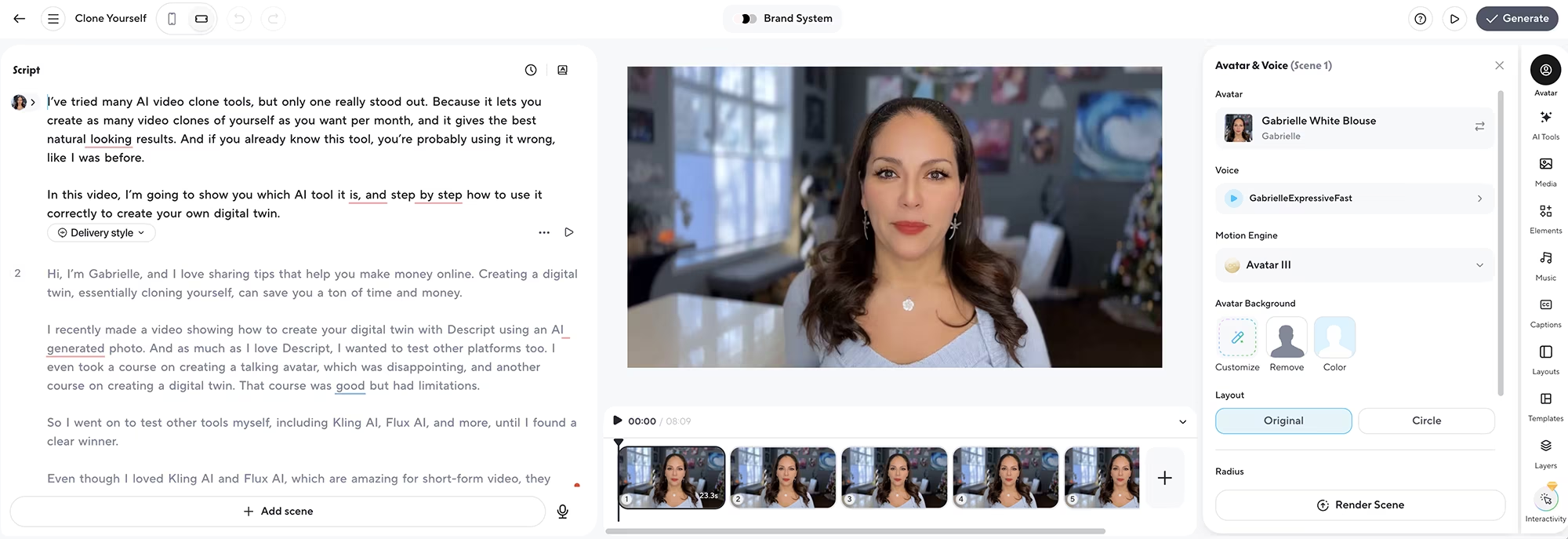
Next, add or write your script text. You can create unlimited videos up to 30 minutes long. Longer videos above 3 minutes may produce AI hallucinations, so consider dividing the script into chapters.
Once your script is ready, you can preview how it sounds and looks. The movement for the lips will generate later, but at least you hear and see the rest. If you like it, then click generate.
HeyGen will email you when your video is ready. Meanwhile, you can create other videos or add more looks. You don't have to wait to continue working.
Conclusion: The Results Speak for Themselves
The results? You can see how my video turned out HERE. This video guide was created using my avatar look made with HeyGen, and edited in Descript. Amazing, right?
Creating your AI clone with HeyGen is simple and a huge time and money saver. No more paying by the minute, no more running out of credits, or spending hours on editing.
You can produce content faster, test different presentations, and scale your video production without burning out.
Quick Recap & What to Do Next
HeyGen is the most affordable and powerful tool for creating unlimited AI video clones with natural movement and voice. Here's what makes it the best choice:
Unlimited video generation with the Creator plan (no per-minute charges) using Avatar III motion engine
Multiple looks under one avatar for content variety
Natural looking results with proper training footage
Multiple voice engine options for different content styles
No need for Avatar IV or expensive upgrades for realistic movement
Easy background removal and editing options
Just avoid the common mistakes I made: don't create multiple avatars for the same person, don't use Avatar IV for unlimited videos, and experiment with voice engines beyond your default clone voice.
Stop spending hours filming yourself. HeyGen lets you clone yourself using multiple looks to create unlimited videos with natural movement and voice. Here's your action plan:
Sign up for HeyGen Creator plan for unlimited videos
Record a 2 to 3 minutes long video of yourself (or who you want to clone) with good lighting and natural movement
Create multiple looks under one avatar to maximize variety
Use the unlimited avatar option, not Avatar IV, to avoid credit charges
Experiment with voice engines for the best natural sounding ai voice clone
Other Useful Resources
Try HeyGen for FREE - AI video clone tool with unlimited video generation on Creator plan
Join the Clone Yourself to Freedom course waitlist - Complete AI cloning system for video and photos
Download the free AI cloning PDF guide - Top tips for creating your AI clone using multiple AI tools
Visit this page with my complete list of tried & true, proven and curated collection of AI & video creation tools!
Disclaimer: As an Amazon Influencer and affiliate marketer, I may earn a commission on purchases made through my links at NO extra cost to you.
This content is educational only, results vary and are not typical, and no earnings are guaranteed.
You are responsible for your own financial outcomes. Please read my Terms and Conditions and Privacy Policy for more details.
Free eBooks!
And get access to other free downloads, masterclasses and more! Just enter a valid email below.
You can opt-out anytime.
My Instagram Feed
Newsletter
Stay in the loop for new videos and special offers! And receive useful tips. Opt-out anytime.
Created with Systeme.io - Click to build yours for FREE today!