



The Blog
How to Create a Storybook for KDP Using Book Bolt
Build a Fully Illustrated Children's Book in Under 30 Minutes
If you have ever wanted to publish a children's storybook on Amazon KDP but felt completely overwhelmed by the process, you are not alone.
Between generating illustrations, keeping characters consistent across every page, verifying commercial usage rights, upscaling images for print, and formatting everything correctly for KDP upload, it used to take multiple tools and a significant chunk of time just to get started. Most indie authors quietly gave up before they ever finished.
I have been through the old process enough times to know how frustrating it was. But recently, everything changed. Book Bolt added a brand new feature to their Studio that handles the entire storybook creation process from start to finish, and I walked through the whole thing, keyword research included, in under 30 minutes.
In this guide, I am going to walk you through every step of that process so you can do the same thing, even if you have zero illustration skills, no graphic design experience, and have never written a storybook in your life.
Why This Matters for KDP Authors

The barrier to entry for illustrated children's books used to be genuinely high. You either needed to hire an illustrator, which could cost hundreds or even thousands of dollars, or you had to piece together a DIY workflow using separate tools for image generation, upscaling, rights verification, and file formatting.
Even then, character consistency across 20 or 30 pages was a real challenge. Each illustration could look like a completely different character if you were not extremely careful with your prompts.
The result was that the independently published storybook space stayed relatively thin, especially for seasonal topics. Most books ranking for popular search terms were either coloring books, activity books, or titles from traditional publishing houses with design teams behind them.
That gap is exactly where the opportunity lives now, because Book Bolt has made it possible for indie authors to compete in that space properly.
Start With Keyword Research (Never Skip This Step)
Before you build anything, you need to confirm there is actual demand for the book you want to create. Never create a book without knowing whether people are searching for it on Amazon.
The good news is that Book Bolt has solid product and keyword research tools built right in, and they recently redesigned the interface to make it much cleaner and easier to navigate.
You can sign up for Book Bolt here or using the link in the Resources section below, try it for free, and use code GABRIELLE20 for an exclusive 20% lifetime discount.
Product Research with Book Bolt
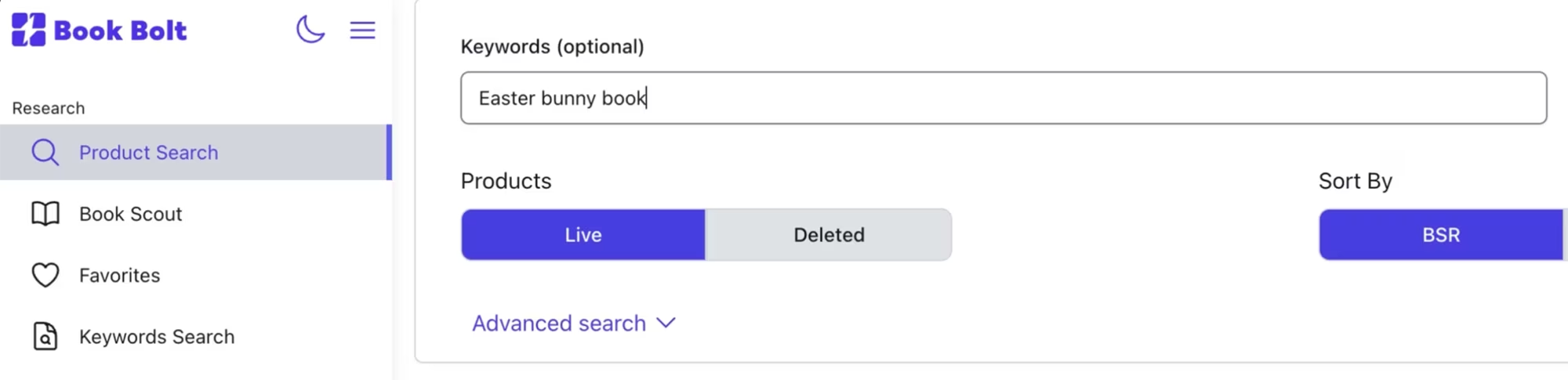
I started with a product search for "Easter Bunny Book" since Easter was coming up. I do not usually create seasonal books because they do not sell year round, but I was curious to see the demand around that time of year.
What I found was a handful of books with bestseller rankings under 100,000, which is a healthy sign. I also noticed that most of the ranking books were coloring books or activity books, with very few independently published storybooks in sight.
Keyword Research with Book Bolt
From there I moved to the keyword search tool inside Book Bolt and sorted by search volume.
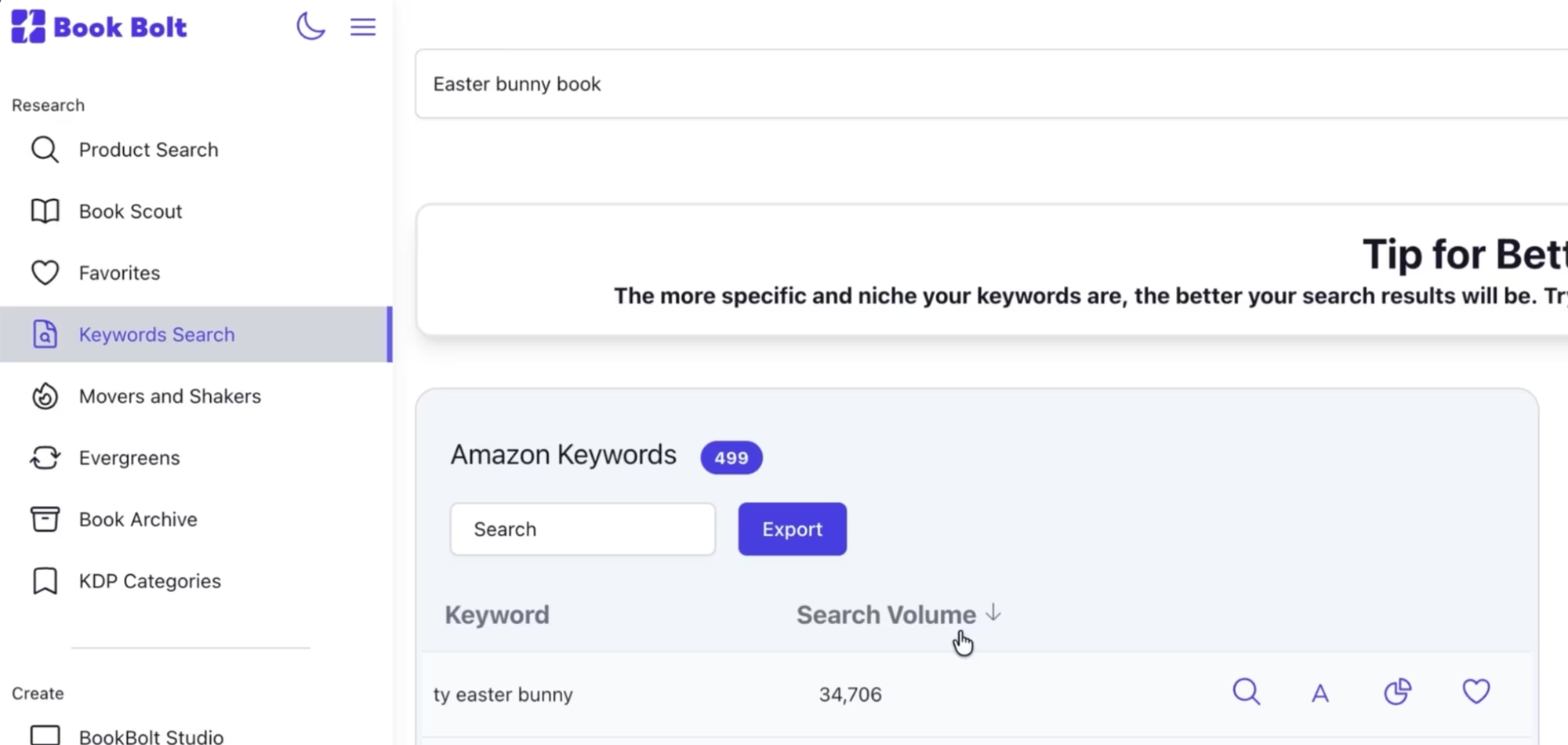
The highest volume results confirmed there was solid demand for the Easter Bunny topic, so I could start creating the book now since people are actively looking for books in this niche.
But I also wanted to make sure that the words "story" and "book" as part of the keyword were working in my favor before moving forward. That meant going one step deeper.
Going Deeper With Titans Pro
This part is optional since I already did product and keyword research using Book Bolt, but for deeper keyword validation, I go to Amazon and use Titans Pro by Self Publishing Titans.
I typed "Easter Bunny Story Book" into the Amazon search bar because I want to see if the words "Story" and "Book" should be part of my profitable keyword, and Titans Pro pulled up an expanded list of keywords that real Amazon shoppers are actually searching for.
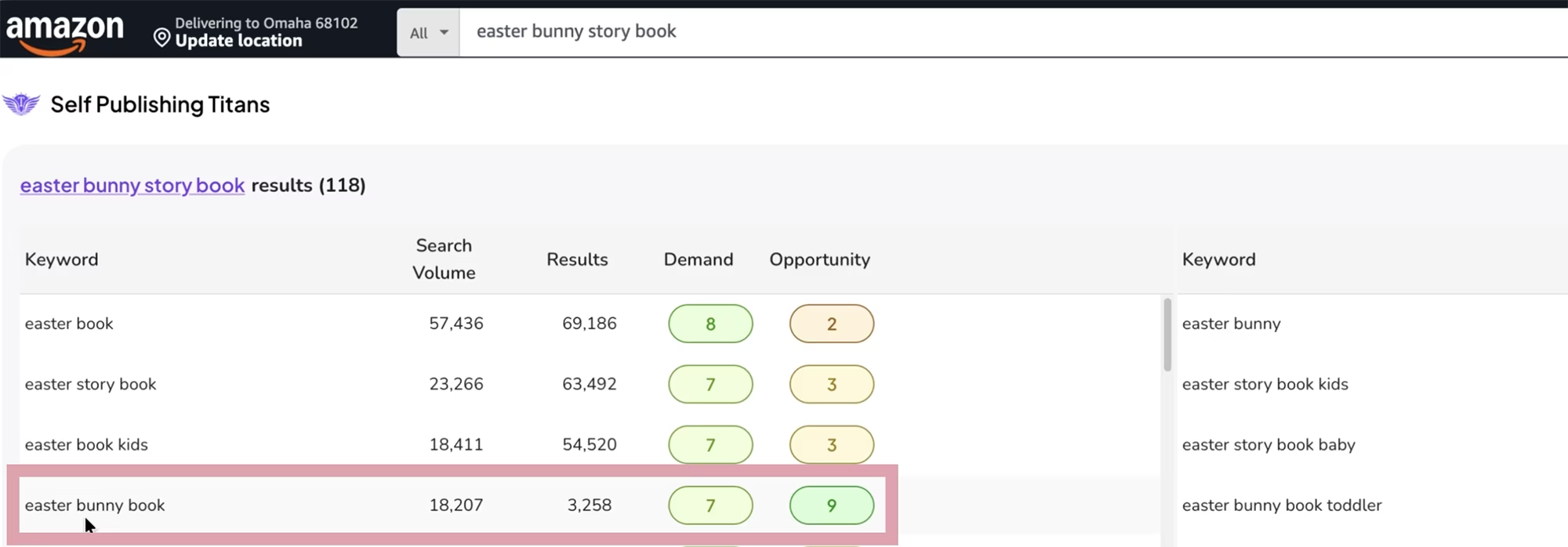
When I sorted by search volume, one keyword stood out immediately. "Easter Bunny Book" had over 18,000 monthly searches with only 3,258 competing products. Titans Pro gave it a demand score of 7 and an opportunity score of 9, both of which are excellent.
The higher the score, the better the opportunity. That kind of combination, high search volume paired with low competition, means your chances of landing on the first page of Amazon search results are very strong.
Titans Pro also lets you save the full keyword list as an Excel sheet, scores and all, which is useful for creating our title, subtitle, product listing and the seven backend keywords. You can also use this information for tracking, and planning future books.
I then typed this promising keyword directly into the search bar to see the first page of results on Amazon. It showed just 2,854 products, with an average bestseller ranking of 28,286, which is well below the 100,000 benchmark that indicates healthy sales activity.
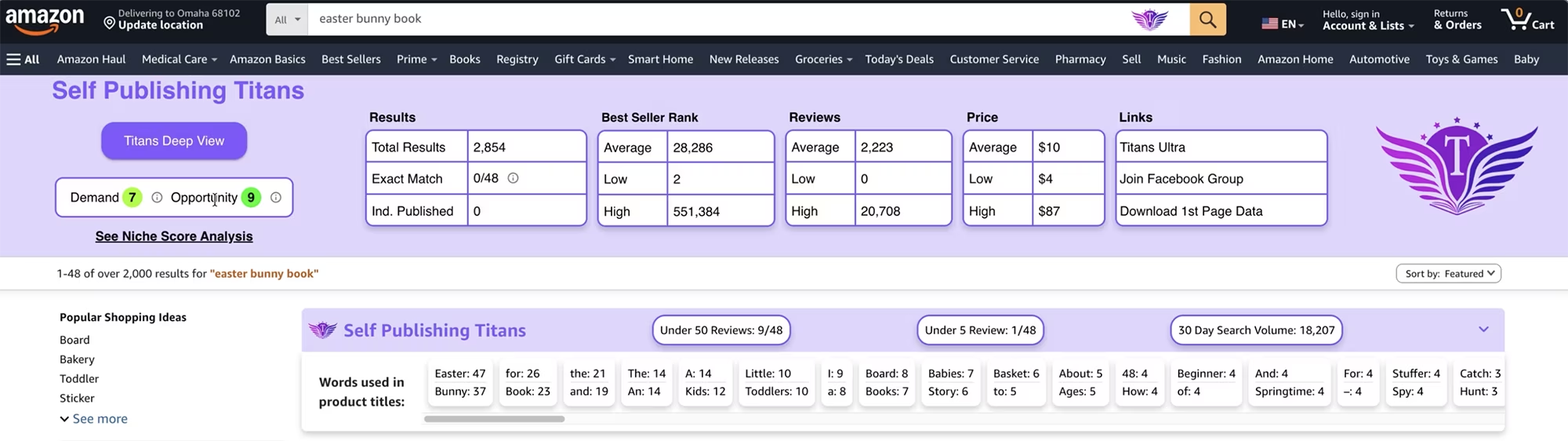
The one area I flagged as a challenge was the average review count, which was on the higher side. In general, the lower the average review count among competing books, the easier it is to rank as a new title.
Titans Pro also shows a breakdown of words used in competing product titles, which is genuinely useful when you are deciding on your own title and subtitle. It takes the guesswork out of naming your book.
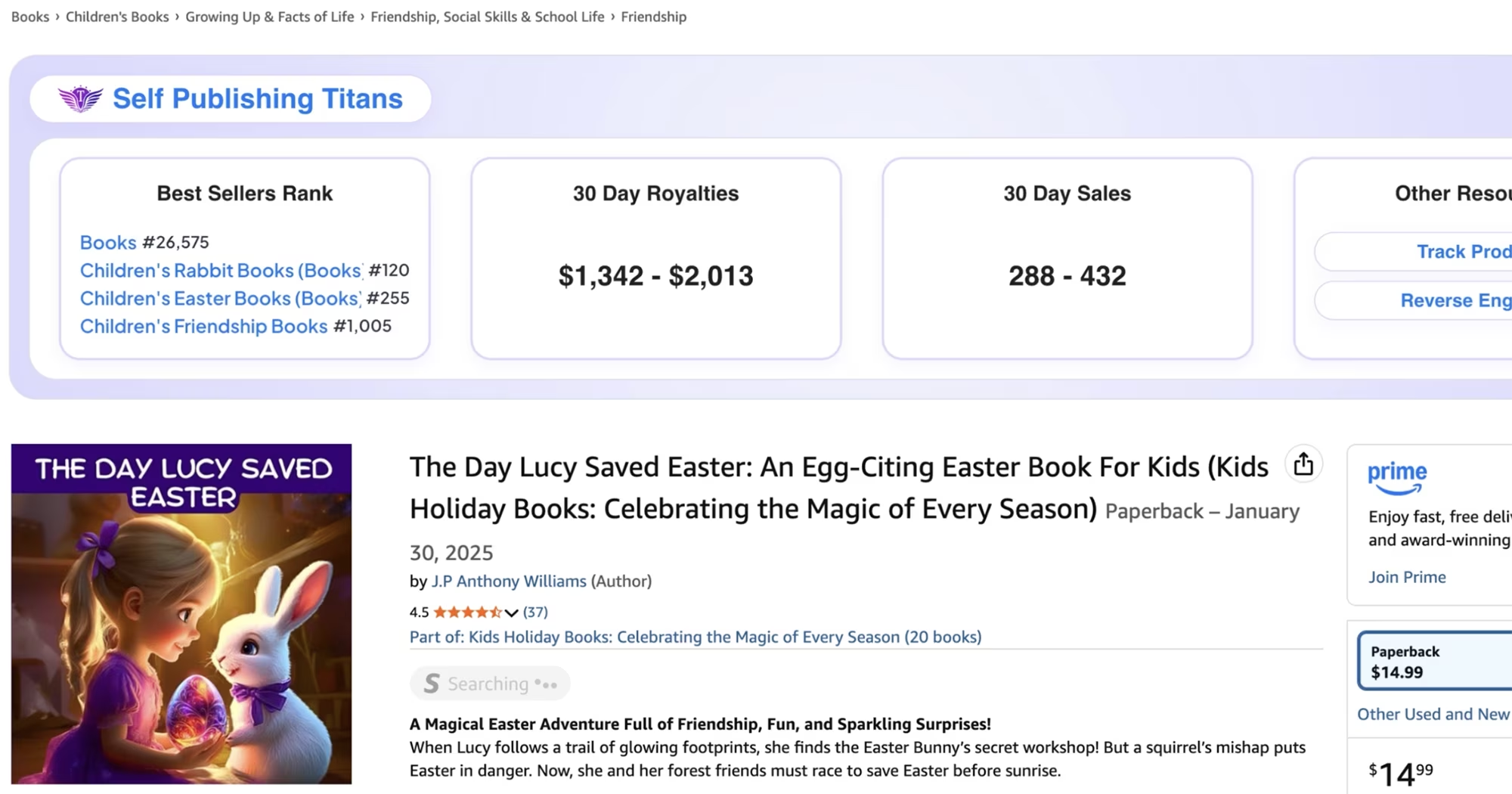
That said, I also spotted an independently published book with a BSR of 26,575 that was generating between $1,000 and $2,000 per month at approximately 200 to 400 sales. That confirmed the market was worth entering.
Setting Up Your Project in Book Bolt Studio
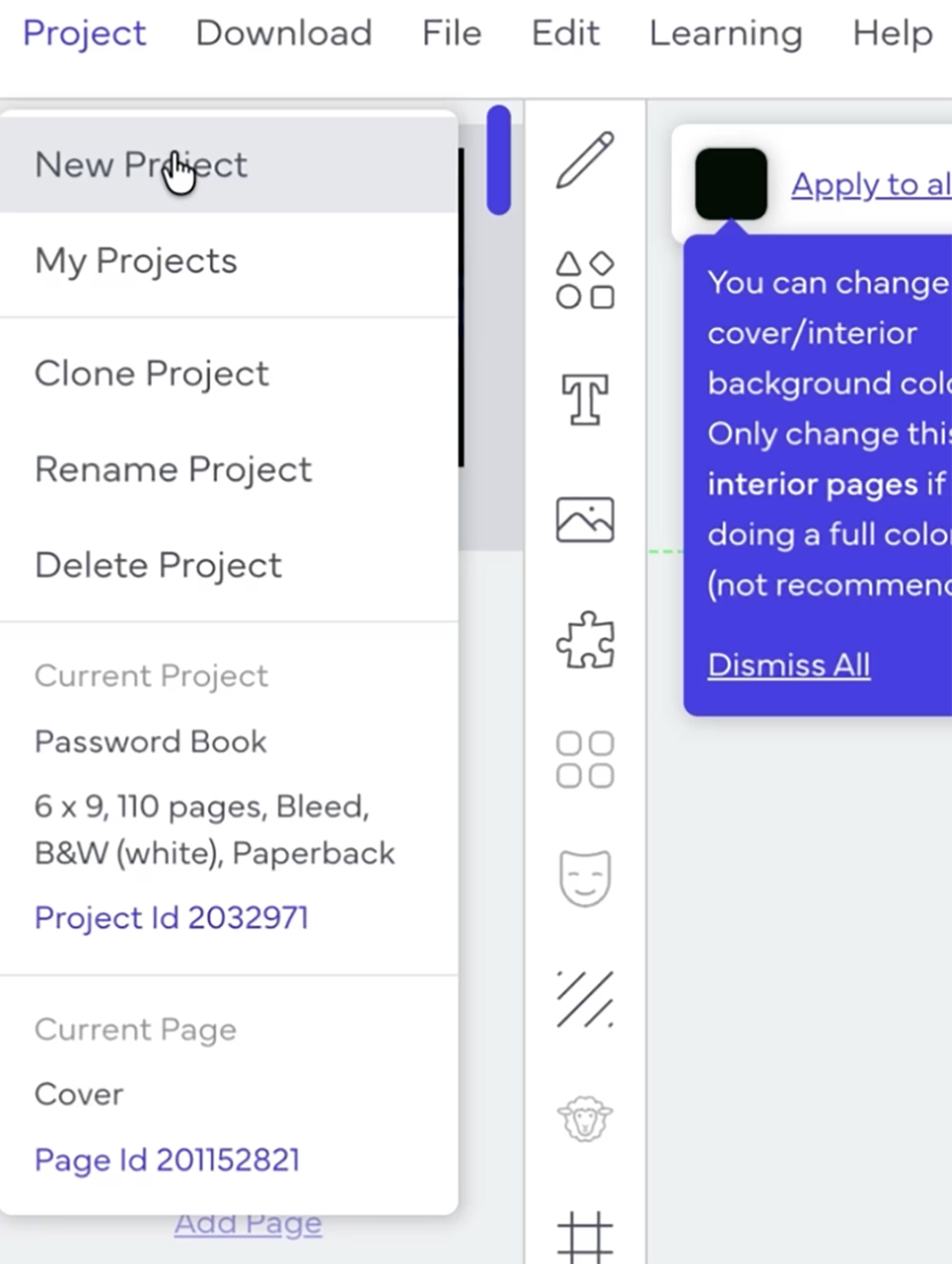
Once the keyword research confirmed demand, I headed into Book Bolt Studio. To begin, choose New Project, then select Paperback: Cover and Interior. Add a project name, your trim size, and your interior and paper type.
For a small children's book, premium color interior with white paper is the right choice. Standard color requires more pages, and since I only wanted 30 pages, premium was the way to go. The minimum page count is 24.
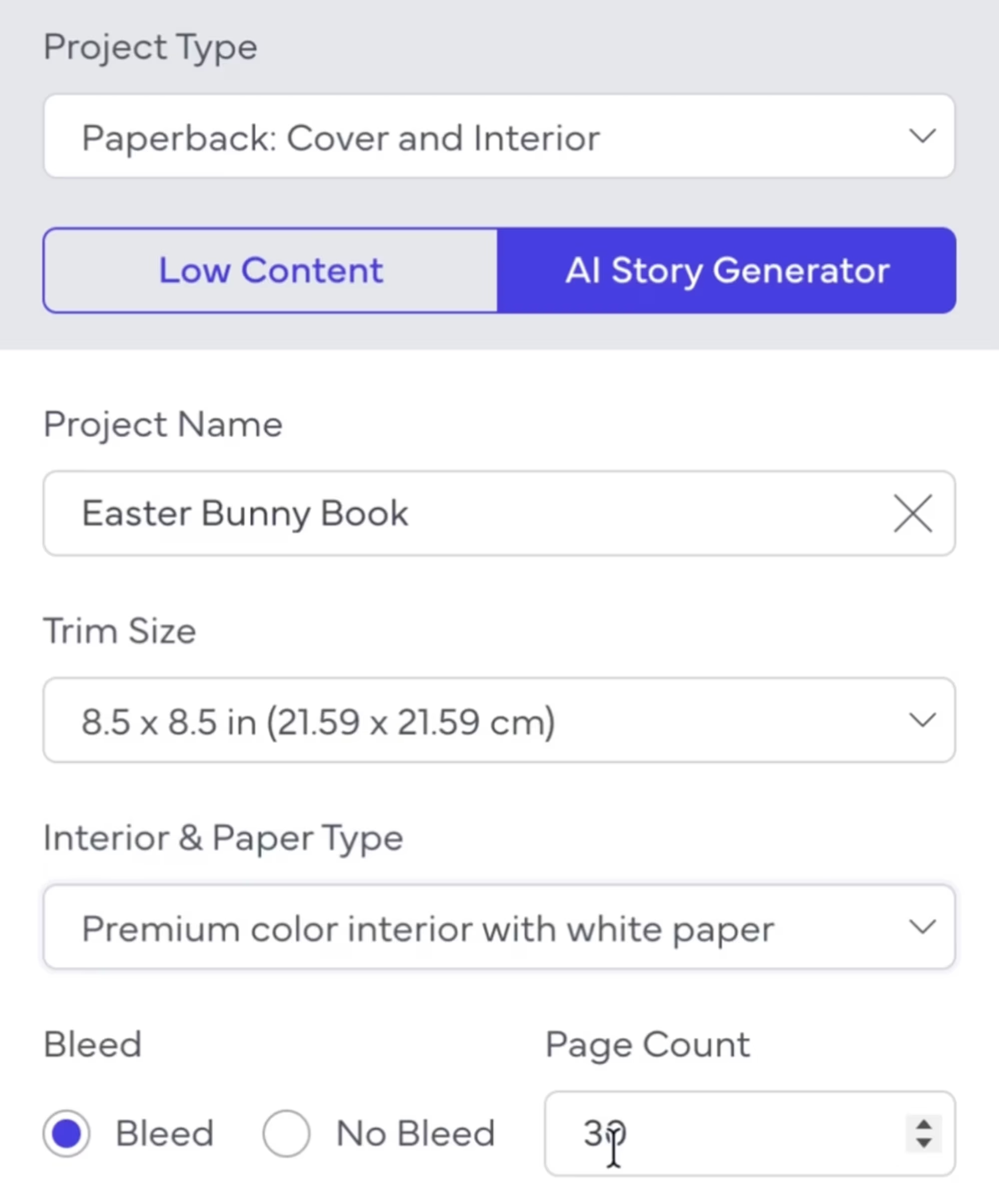
One important thing to note before you move forward: you need to account for the first blank page, the title page, and the copyright page in addition to your story pages.
We will later specify the number of pages your story will span. Your story pages should therefore be LESS than the number of book pages.
For example, if your book has 30 pages, then 28 pages or less should be the story, and 2 pages would be for the title page and the copyright page.
You cannot add or remove pages beyond the setup stage without affecting your book's measurements for KDP, so plan ahead and get this right from the start.
Adding Your Story Parameters
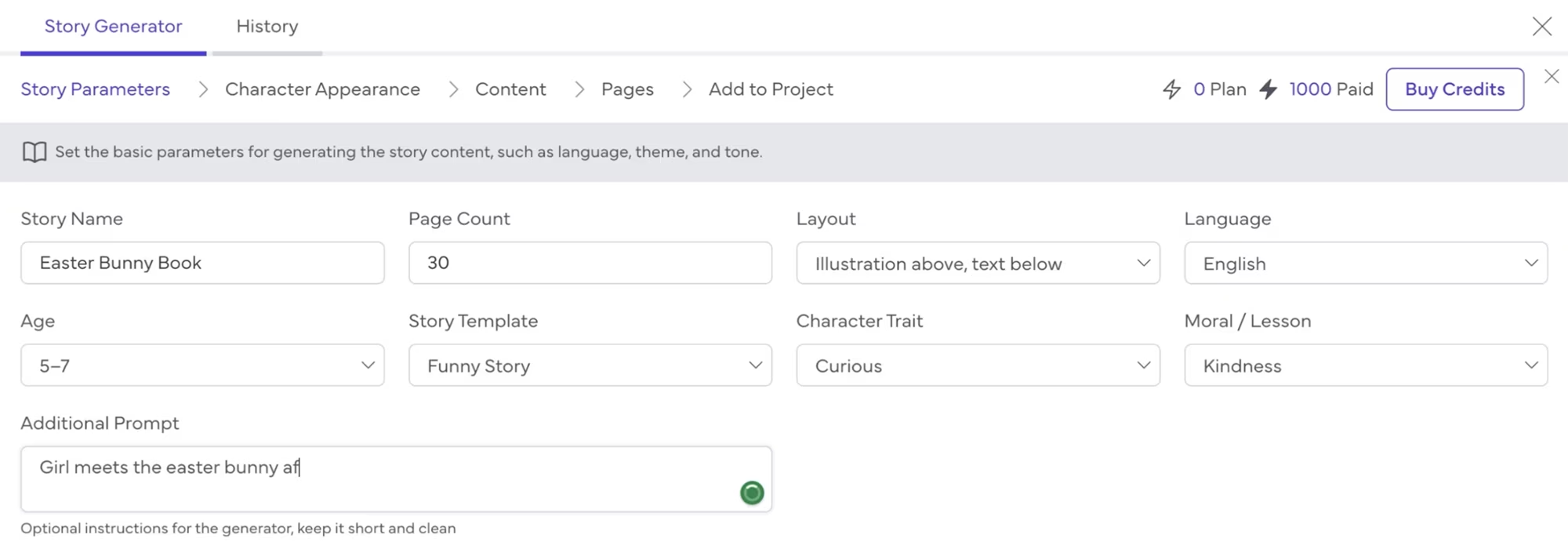
This is where you set how many pages the actual story will span, along with the layout, language, target age range, story template, and the moral or lesson you want the book to convey. There is also an additional prompt field where you can add extra detail to guide the story generation.
Then you move on to defining your main character's appearance.
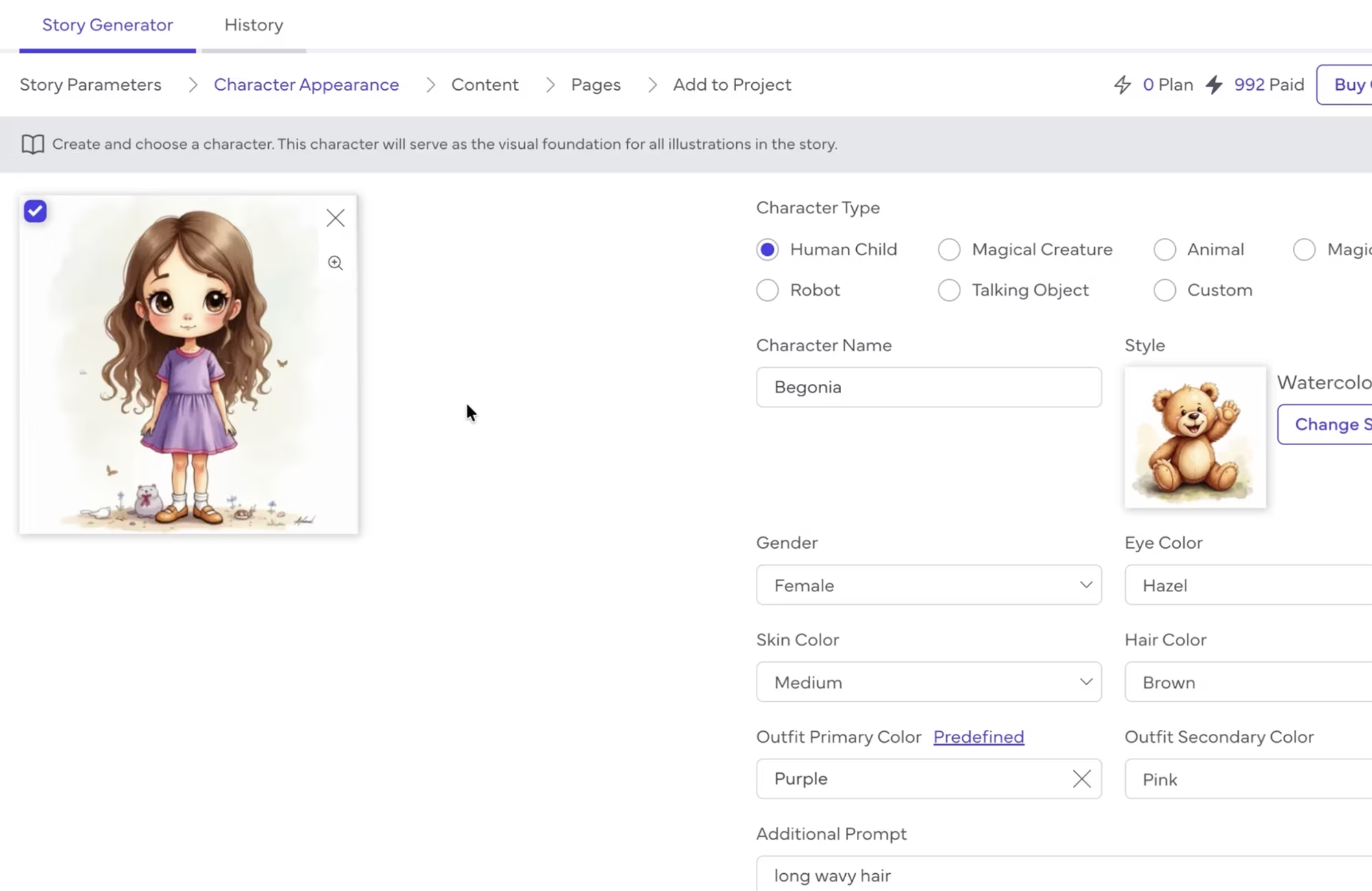
I created a human child named Begonia with hazel eyes, medium skin tone, brown hair, and a purple and pink outfit. You can add more specifics in the additional prompt field too. For the art style, I chose watercolor.
Once you press Generate Character, it takes just a few seconds to show you a result. If you are not happy with it, you can regenerate and choose the version you like best.
This character will stay consistent across every single illustration in the book, which is one of the most powerful features Book Bolt has added.
Generating the Story and Illustrations
After your character is ready, press Generate Content.
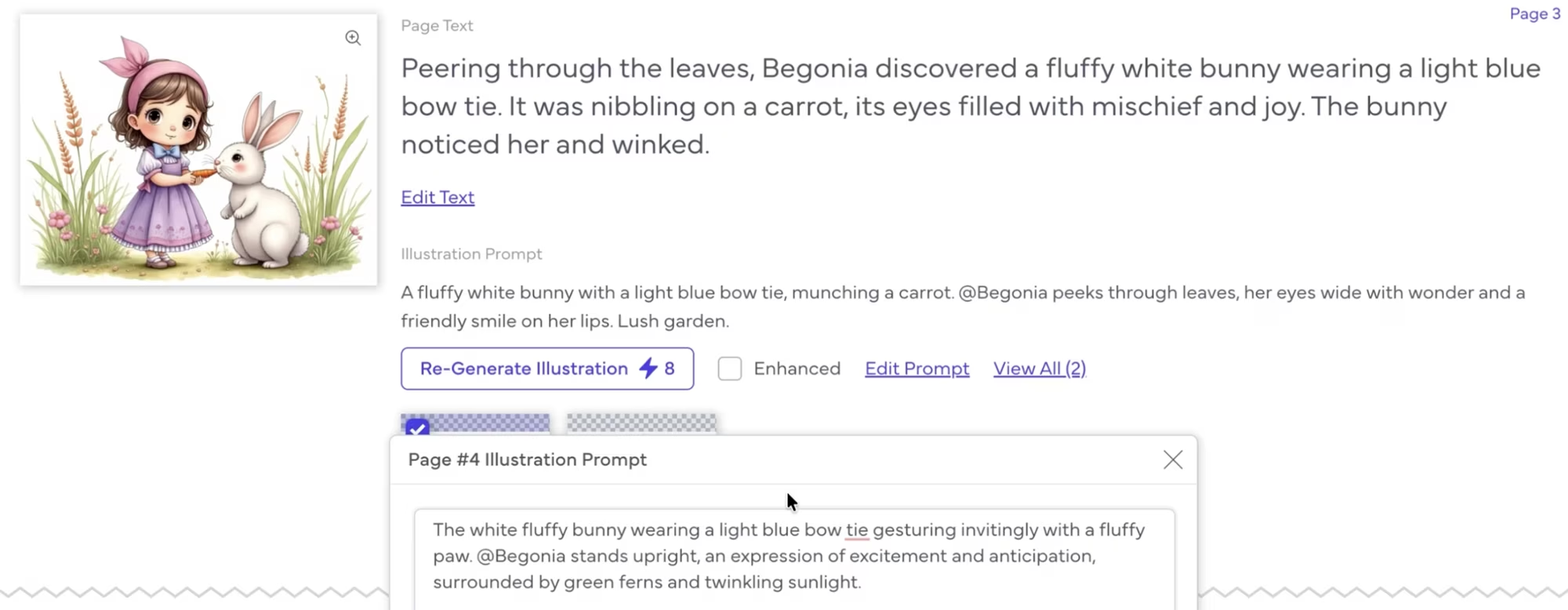
Within a couple of minutes, the full story is written and ready. From there you can generate each illustration individually, or simply choose to generate all 23 at once and let it run.
There is also an enhanced option that produces higher quality images but uses more credits. I was happy with the standard results, so I did not use it.
Once all the images are generated, you can go back and regenerate any illustration you are not satisfied with. You can even edit the prompts used to create each one.
I noticed the bunny in my story did not look quite right in a few frames, so I tweaked the prompts until it was closer to what I wanted.
You can also edit the actual story text or regenerate the entire story using the button at the bottom of the screen, if you want to take the narrative in a different direction.
Laying Out the Pages
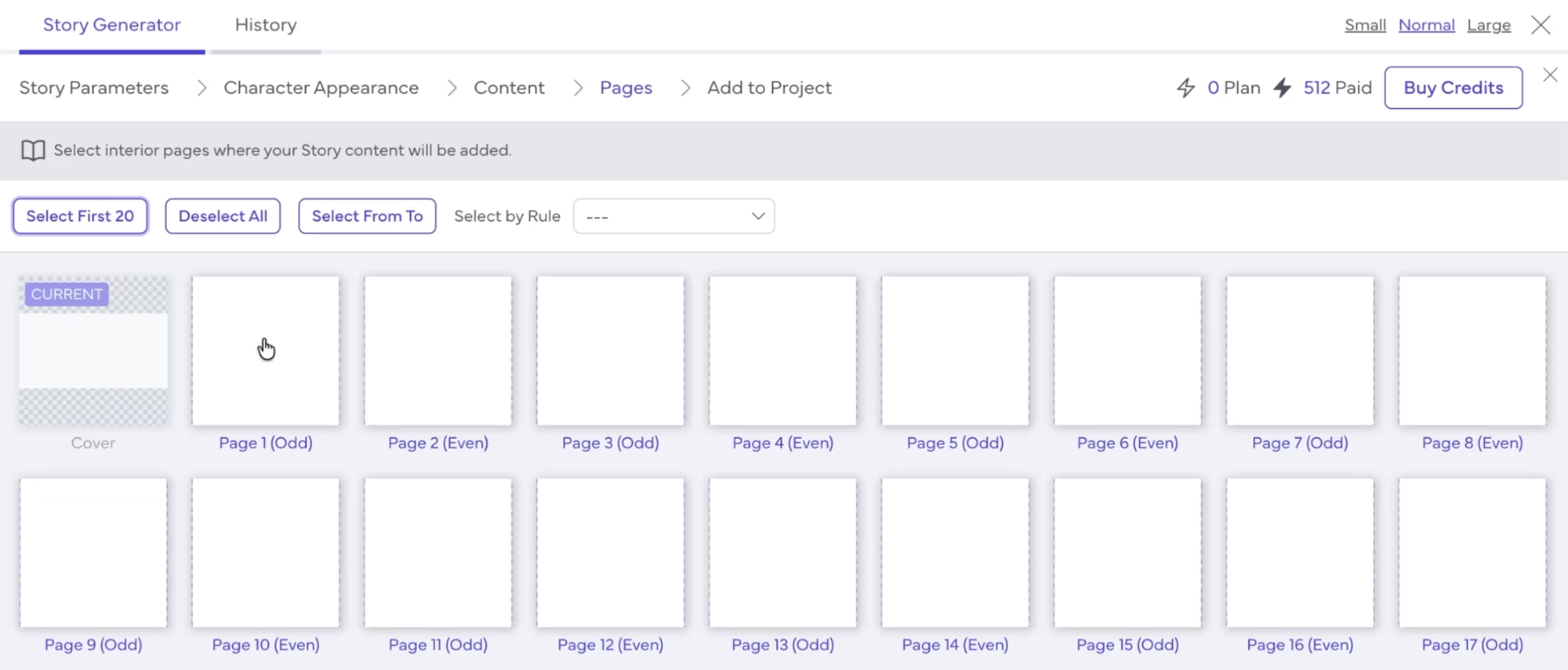
When you are happy with everything, click Continue to Pages. This shows you all the pages laid out in order.
Select the pages your story will appear on, and remember to leave space at the beginning for your blank page, title page, and copyright page. These are not optional on KDP, they are part of a properly formatted book.
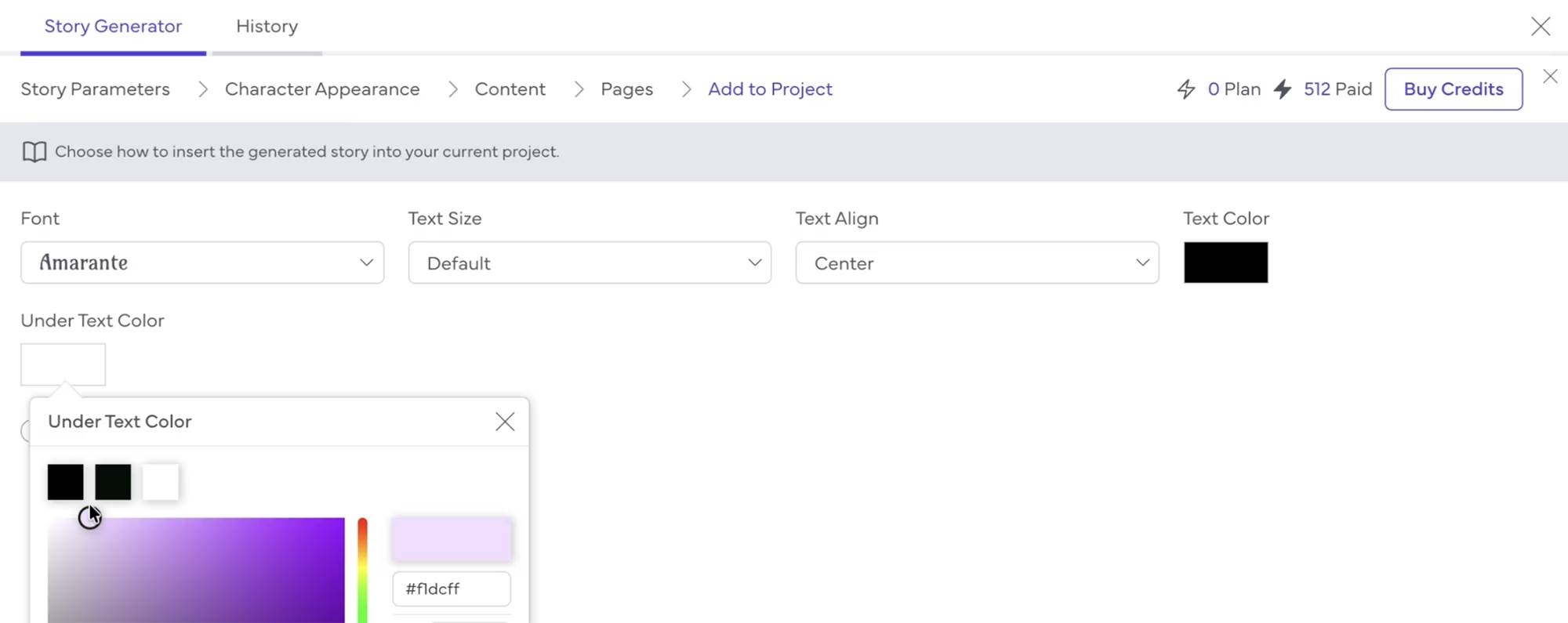
Next, choose your font, text size, alignment, and font color. There is also an option to add an undertext color, which gives the text a soft background highlight.
I used a light purple and thought it looked really lovely. Press Submit, and Book Bolt places all the illustrations onto their respective pages automatically.
Creating a Consistent Cover Character
Here is something that most tutorials skip over entirely.
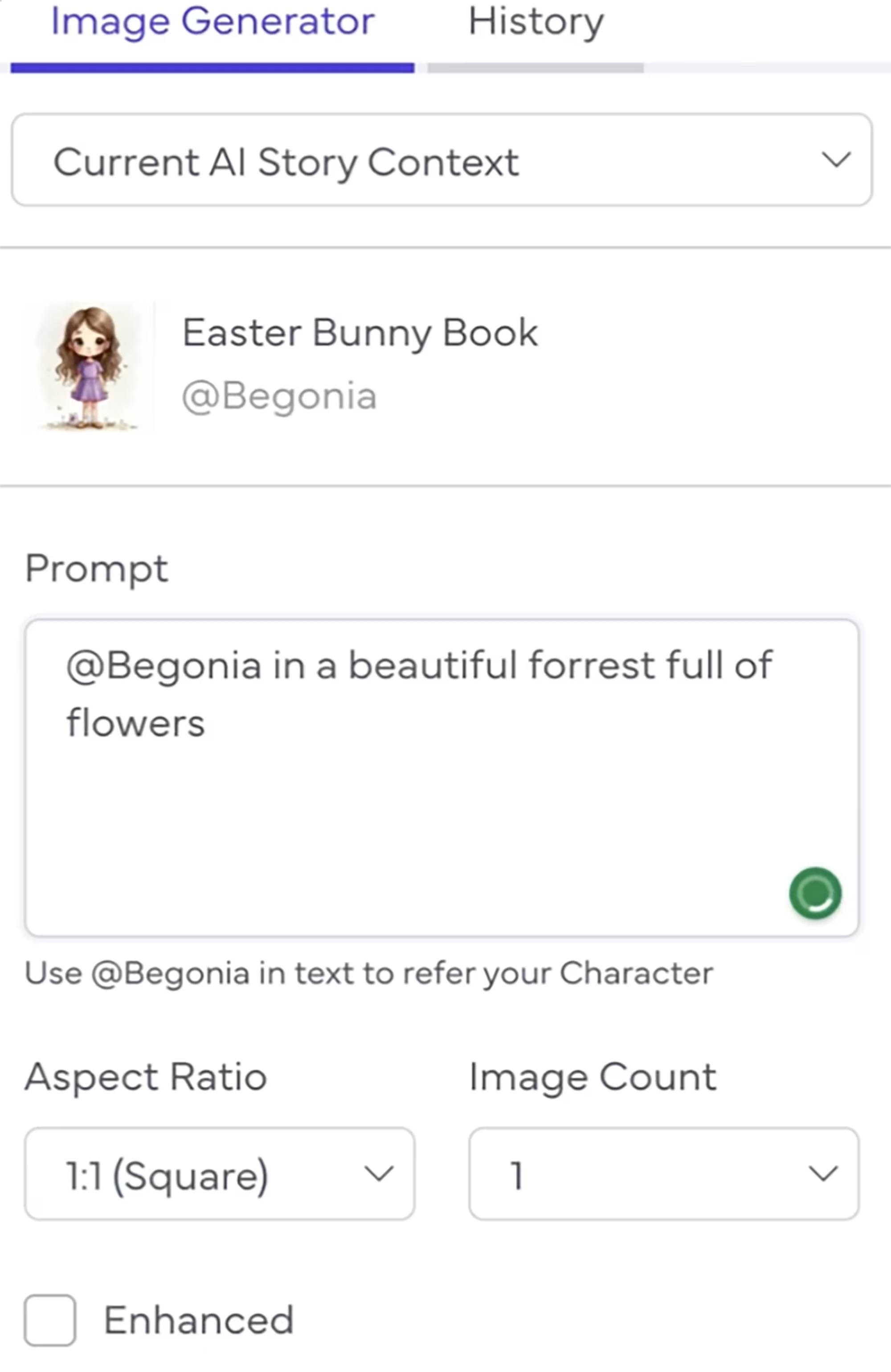
The first spread in the layout shows the back and front cover together. You can generate a consistent character for your cover using the same AI Story Context as your interior illustrations, which means your cover character will match your story character perfectly.
Click AI Tools, choose Image Generator, and instead of selecting Precise, choose Current AI Story Context. Make sure to reference your character by name in the prompt, in my case @Begonia, and describe the cover image you want.
I generated two images, one for the front cover and one for the back, and both turned out beautifully.
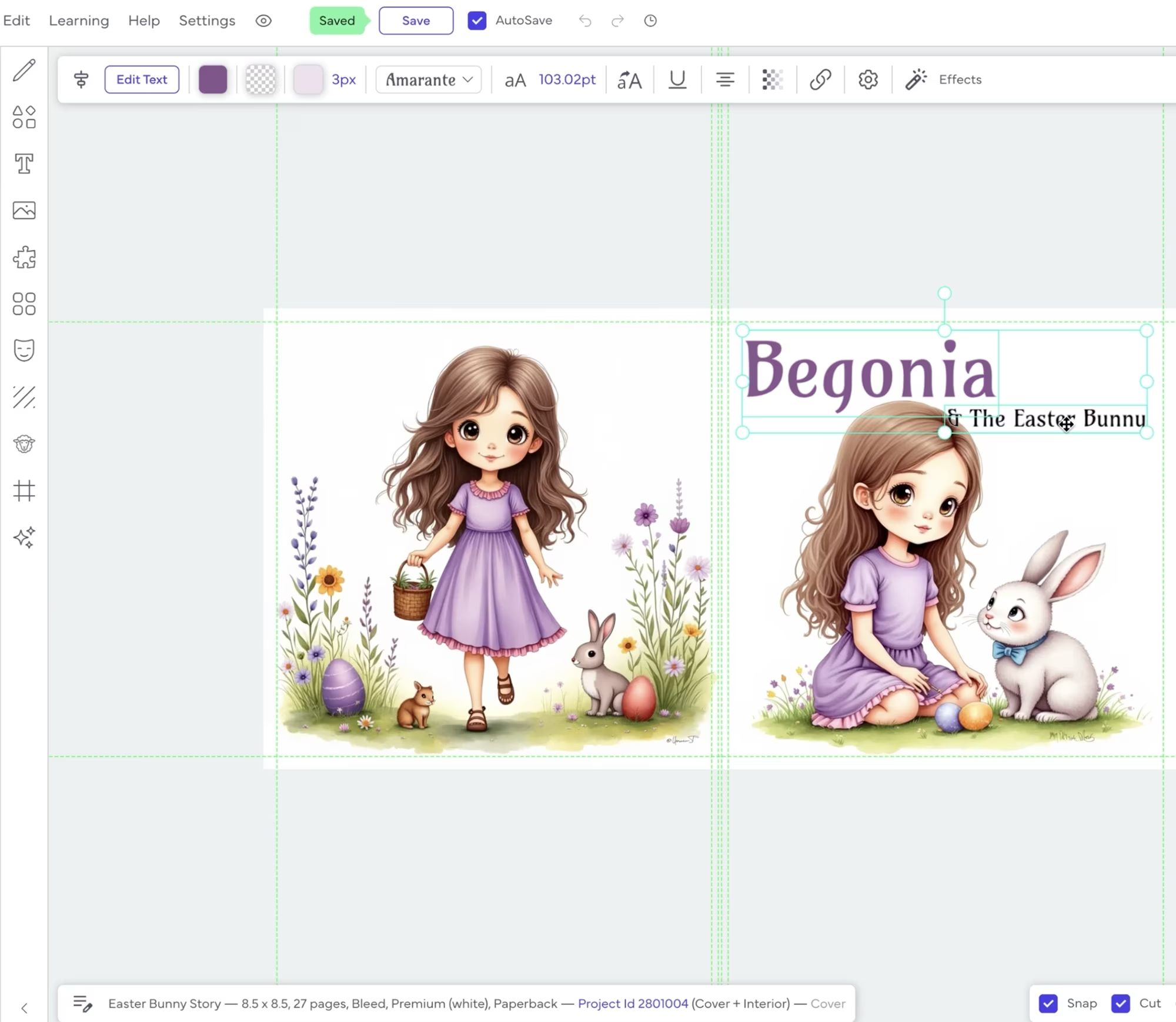
After that, I added the book title and any other cover text. This was a demo so I kept it simple, but your cover is not the place to cut corners!
Want a Professional KDP Book Cover That Actually Sells?
The number one factor for getting sales on Amazon KDP is your cover. A beautiful interior means nothing if your cover does not stop the scroll, and that means you need one that is built to convert, not just look pretty.
So if you don't want to create your own cover and increase your chances of getting sales, I recommend 100 Covers.
They have designed over 20,000 book covers and actually tracked how each one performed in real sales and ad data, so every design decision they make is backed by what genuinely moves books off the digital shelf.
If you do not want to design your cover yourself, this is exactly where to go. Use code GABRIELLE for 30% off their already very affordable prices, and click here or visit the link in the Resources section below to get started.
Downloading and Uploading to KDP
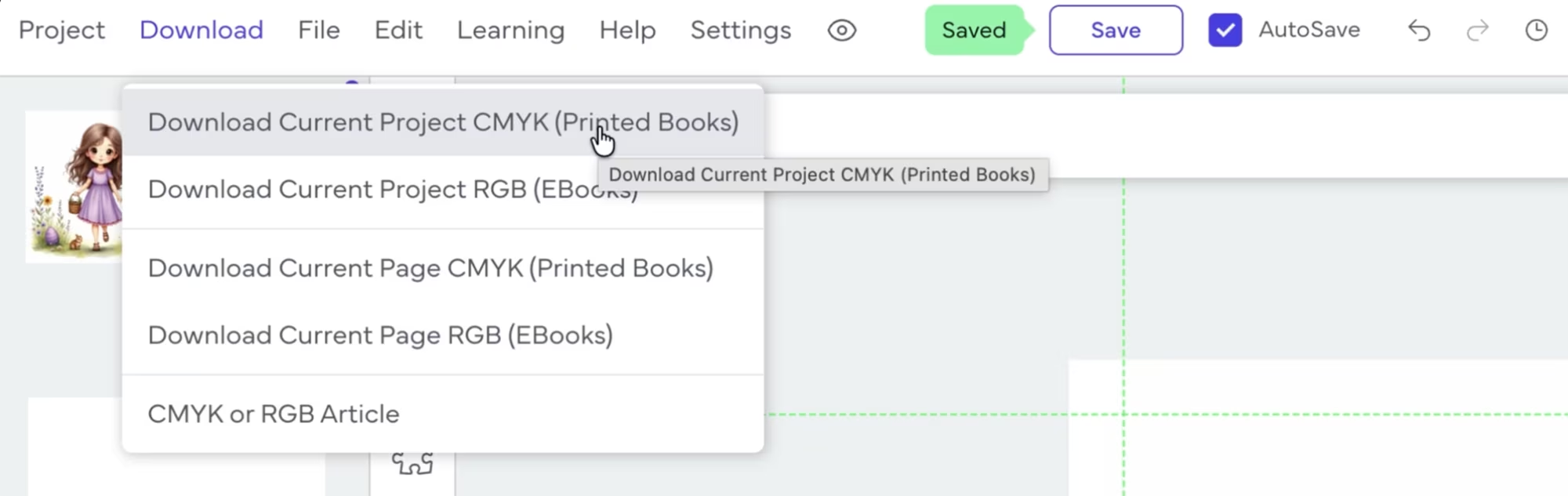
Once the book is complete, go to Download in the top menu. Choose Download Current Project CMYK for a printed book, or Download Current Project RGB for an e-book version. I downloaded both.
Once the zip files are decompressed, you will find one file for the cover and one for the manuscript, both formatted and ready to upload directly to KDP. The PDF looked really clean and well-produced when I reviewed it.
One thing worth noting: Book Bolt currently does not generate an ePub file, which is the format Amazon requires for Kindle e-books.
To publish the e-book version, you would need to convert the PDF to ePub using a tool like Kindle Create or a dedicated conversion tool.
Conclusion & Quick Recap
Book Bolt's new storybook feature genuinely removes the biggest obstacles that kept indie authors out of the illustrated children's book market, and the results are professional enough to compete with traditionally published titles if you do things right.
Keyword research confirmed "Easter Bunny Book" has high search volume with a low amount of competing products
Titans Pro indicated a demand of 7 and an opportunity of 9, both excellent ratings, and confirmed it is a profitable keyword
Book Bolt Studio generates the full story, all illustrations, and keeps your character consistent across every page
You can edit story text, tweak illustration prompts, and regenerate anything you are not happy with
The finished files are print-ready for KDP with both cover and manuscript in a single download
The independently published storybook niche is significantly underpopulated, making it a strong opportunity right now
Next Steps: Take Action Now
If you have been sitting on the idea of publishing a children's book because the process felt too technical or too expensive, that barrier is gone.
Book Bolt has compressed what used to be a multi-tool, multi-day process into something you can realistically complete in a single sitting.
Sign up for Book Bolt or try it free
Use code GABRIELLE20 for your exclusive 20% lifetime discount
Sign up for Titans Pro for deep keyword research (optional) and get 5% OFF using code GABRIELLE
Run keyword research in Book Bolt and optionally validate with Titans Pro before creating anything
Set up your project with premium color interior and white paper for short children's book stories
Generate your character first, then your story content, then all illustrations
Download the CMYK file for print and the RGB file for your e-book version (this one - convert to ePub)
Upload your cover and manuscript files directly to KDP
Other Useful Resources
Book Bolt. Keyword research and book creation tool. Use code GABRIELLE20 to get 20% off for life!
Titans Pro. Find the best keywords for your Amazon KDP books and ads. Use code GABRIELLE for 5% off.
Helium 10. Special pricing! The all-in-one tool suite for Amazon sellers and KDP authors with keyword research, listing optimization, and market analytics.
100 Covers. Get a professional book cover designed for you, for a very low cost! Use code GABRIELLE for 30% off.
Visit this page with my complete list of tried and true, proven and curated collection of tools for Amazon KDP!
Disclaimer: As an Amazon Influencer and affiliate marketer, I may earn a commission on purchases made through my links at NO extra cost to you.
This content is educational only, results vary and are not typical, and no earnings are guaranteed.
You are responsible for your own financial outcomes. Please read my Terms and Conditions and Privacy Policy for more details.
Free eBooks!
And get access to other free downloads, masterclasses and more! Just enter a valid email below.
You can opt-out anytime.
My Instagram Feed
Newsletter
Stay in the loop for new videos and special offers! And receive useful tips. Opt-out anytime.
Created with Systeme.io - Click to build yours for FREE today!